
Screen annotation for software tutorials your students can follow
Code editors, CAD tools and dense app ribbons are packed with tiny targets. SHARA shows your cursor, your clicks and your shortcuts on screen, live in class and in every recording, from one hotkey on Windows.
How do you make clicks and shortcuts visible in a software tutorial?
Run a screen overlay that shows three things: where the cursor is (a halo that flashes on every click), what it points at (a zoom lens on the small detail) and which keys you pressed (an on-screen keystroke display). On Windows, SHARA does all three over VS Code, PowerPoint or AutoCAD, and Zoom, Teams, Google Meet and OBS capture it when you share or record the entire screen.
“Sorry, where are you clicking?”
In a software lesson that question rarely means the class wasn’t listening. It means the screen didn’t show them three things you did.
A 16-pixel ribbon icon on your 4K screen becomes a smudge in a Zoom tile or a 1080p export. Your pointer is smaller still, and a left click looks exactly like a right click.
The shortcuts you most want to teach leave no trace. You press Ctrl+Shift+P in VS Code or type WA in Revit, something opens, and nobody saw how.
Line numbers, formula bars and properties palettes are unreadable at stream resolution. Viewers watching on a phone lose the value you just changed.
Looking for an Autodesk Screencast alternative?
Autodesk ended support for Screencast, which logged the commands you used while recording, on January 31, 2023 (Autodesk support notice). SHARA covers the on-screen part: your keys, clicks and cursor show live while you teach or record. It doesn’t record video or keep a command log, so pair it with OBS or Camtasia.
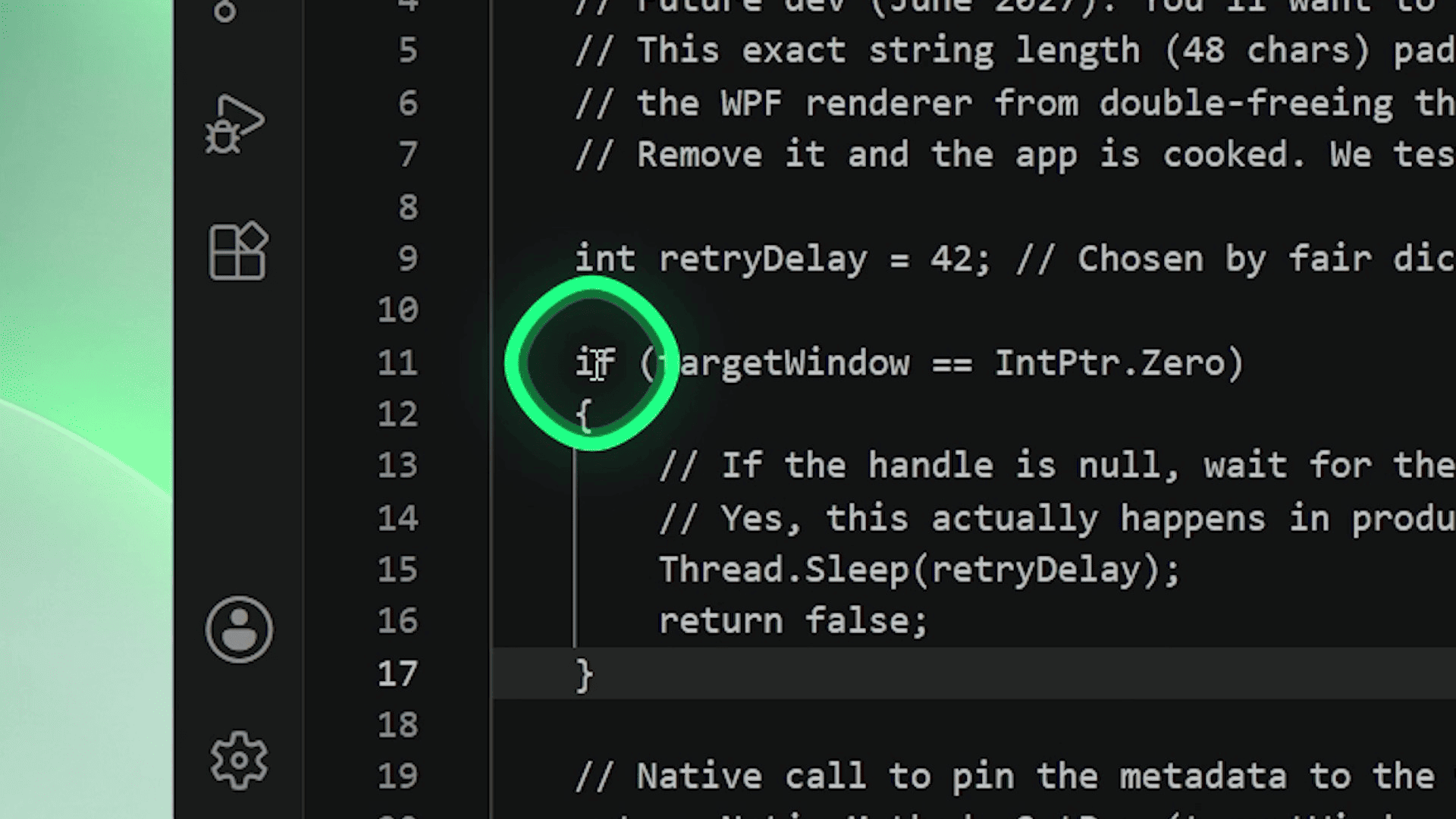
A VS Code demo, before and after an overlay
Running a command and fixing one line in VS Code, taught live and recorded.
Without an overlay
- Open the Command Palette. Say “Control, Shift, P.”
- Repeat it for the half who missed it.
- Scroll to the line you changed. Squint along with the class to read one character.
- Describe where the terminal output is in words.
- In editing, add zoom-ins and callouts so the recording is readable.
With SHARA running
- Press Ctrl+Shift+P. The Keystroke Pill shows the chord, and the halo shows where you click next.
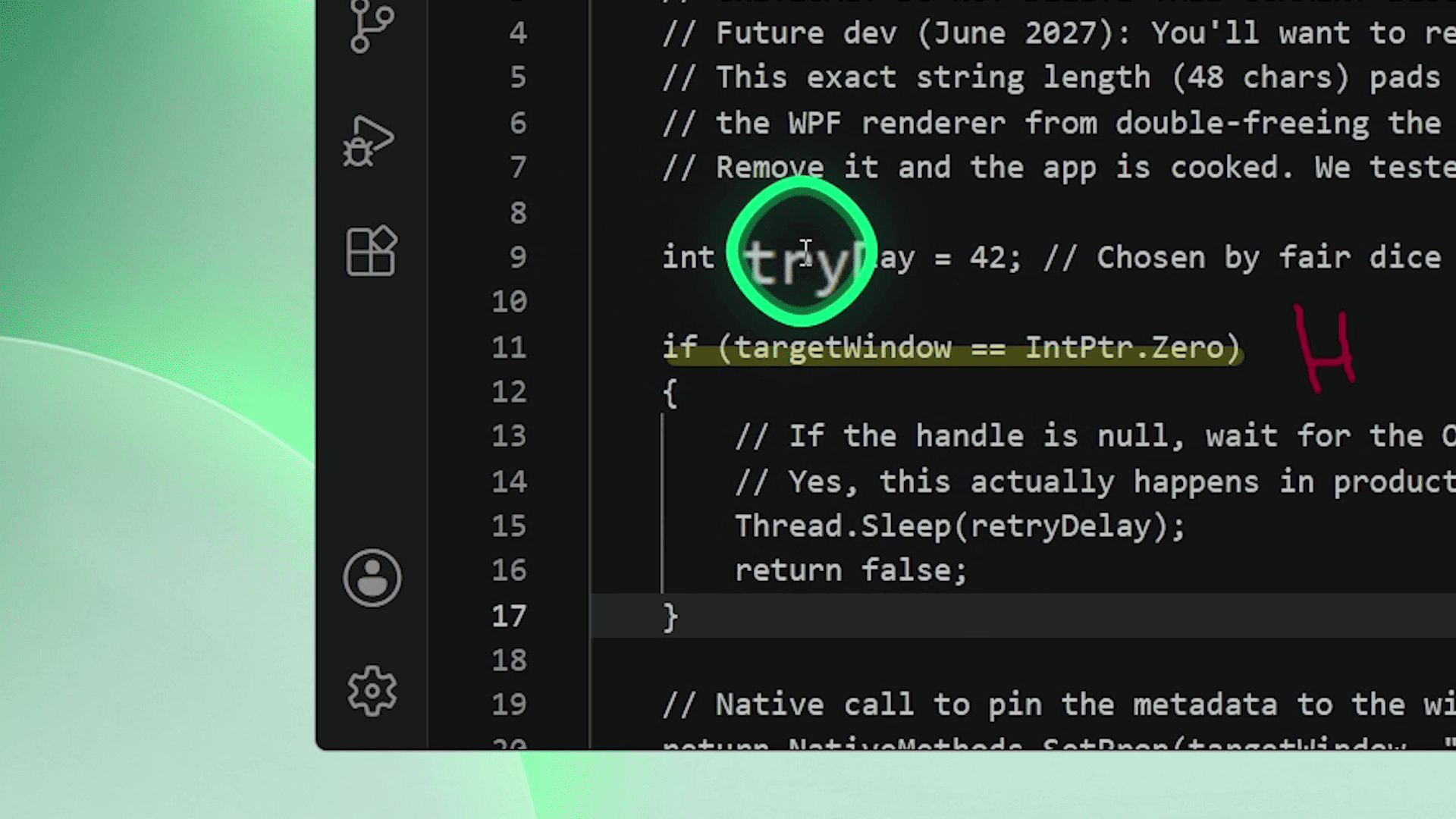
- Hold Ctrl+Win+G. Live Zoom enlarges the line you changed, so one character is readable.
- Press Ctrl+Win+W and draw an Arrow to the terminal output. Ctrl+Z undoes a stroke you don’t like.
- Press Esc. The ink goes idle and stays put while you keep typing.
- Export with no zoom-in pass. The overlay is already in the frame.
Try it on your next lesson. The halo with its click flash, Pen, Arrow and Laser are free forever, and every install starts with a 14-day Pro trial.
Which tool to use for each teaching moment
Everything is also on the SHARA Wheel: press Ctrl+Space and it opens under your cursor, or use the docked toolbar (every SHARA hotkey), so your hand stays on the mouse.
| Teaching moment | SHARA tool | How you trigger it | Tier |
|---|---|---|---|
| “Watch where I go” | Cursor halo that flashes on every click | Turn it on once; Ctrl+Win+H toggles it | FREE |
| Tracing a menu path | Laser, which leaves a fading trail | Ctrl+Win+X with the Laser equipped | FREE |
| Marking a parameter | Pen and Arrow (Highlighter: Pro) | Ctrl+Win+X, Ctrl+Win+W | FREE |
| Labelling a field | Text labels | Ctrl+Win+I | FREE |
| Reading small text | Magnifier lens or Live Zoom | Hold Ctrl+Win+G | PRO |
| Teaching a shortcut | Smart Keystroke Pill | Ctrl+Win+T | PRO |
| Focusing one panel | Spotlight dim | Ctrl+Win+G in Spotlight mode | PRO |
| Sketching a diagram | Whiteboard: white, black or grid | Ctrl+Win+K | PRO |
| Handing out the result | Screenshot | Toolbar or Wheel | FREE |
| Back to work | Ink idle, then erase | Esc, then Esc again | FREE |
“SHARA has earned a permanent place in my training toolkit. The exceptionally smooth and clear writing, even at very small sizes, and the brilliant Ctrl+Space workflow that puts every tool right where my mouse is make live annotation remarkably effortless, letting me focus on teaching rather than managing the tool.”
Microsoft Certified Trainer (MCT)
Setup for VS Code, PowerPoint, AutoCAD and Revit lessons
Different interfaces, same three gaps. Here is the setup that closes them in each.
Command palette chords, multi-cursor edits, one changed character on a long line
Setup: Keystroke Pill in Shortcuts Only mode, Live Zoom on the line, Arrow to the terminal output.
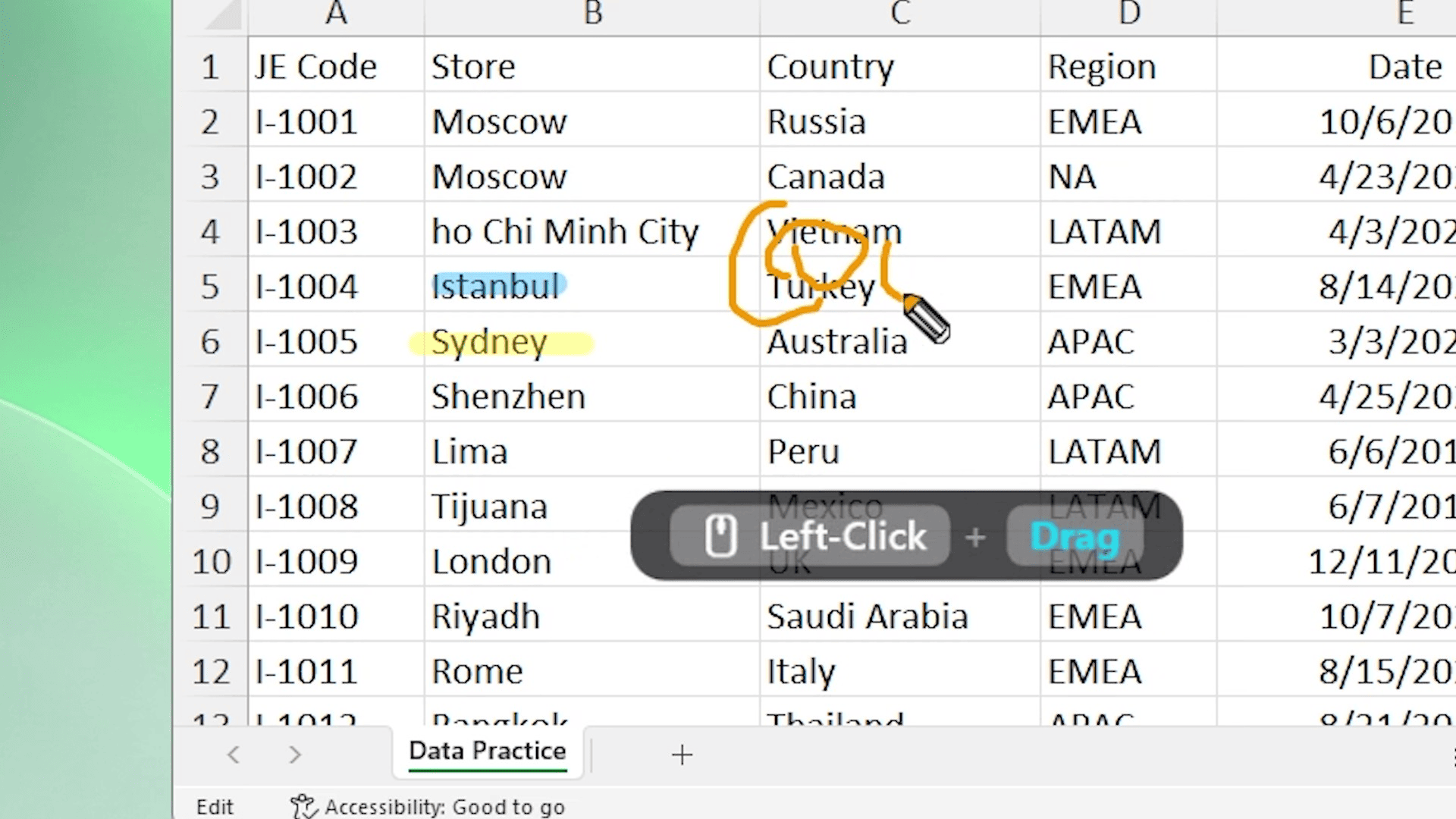
Ribbon buttons, the formula bar, one cell in a full sheet
Setup: Halo flash on each ribbon click, Magnifier on the formula bar, Pen to circle the cell you changed.
Typed commands, object snap markers, status-bar toggles the size of a letter
Setup: Keystroke Pill for the command you type, Magnifier on the snap marker, Pro click colours to separate a pick from the right-click menu.
Ribbon tabs, the Type Selector, one field in a long Properties palette
Setup: Halo on each ribbon click, Magnifier on the Type Selector, Pen to circle the parameter you changed.
Typical lesson scenarios, not benchmarks. SHARA draws over any Windows app, browsers included.
A VS Code lesson recording, scene by scene
A suggested setup for a short VS Code lesson, recorded with SHARA and OBS.
-
Before you hit record
Set the stage once
Turn on Presenter Mode so the Wheel never appears on camera. Pick a halo colour that stands out against your editor theme, and switch on the Keystroke Pill in Shortcuts Only mode. In OBS, use a Display Capture source: a Window Capture of VS Code alone records VS Code without the overlay above it.
Viewers see: VS Code, with a coloured halo on the cursor and each click marked.
-
Scene 1
Open the Command Palette from the keyboard
Press Ctrl+Shift+P. The Pill shows Ctrl + Shift + P as separate key chips, and the halo marks where you click in the list.
Viewers see: the shortcut, not just the palette. -
Scene 2
Zoom into one line
Hold Ctrl+Win+G. Live Zoom enlarges the line under your cursor. The Magnifier lens does the same for a small area while the rest of the file stays at normal size.
Viewers see: the one changed character, readable on a phone. -
Scene 3
Point to the result
Press Ctrl+Win+W and draw an Arrow to the terminal output. The editor stays live under the ink.
Viewers see: exactly which output line matters. -
Scene 4
Keep working
Press Esc: the ink goes idle and stays on screen while you keep typing. Every click flashes (Pro adds separate left and right colours). A second Esc erases everything.
Viewers see: each click, and the context menu opening from a right click.DrawingPen, Laser, shapesIdleInk stays, apps workClean screenAll ink and shapes gone
SHARA is made by Mashyo. We teach software ourselves (Revit and Autodesk Forma, as it happens) and use SHARA in every lesson. For the full recording setup, see SHARA for screen recording.
Questions instructors ask before installing
“Our training lab blocks software that phones home.”
SHARA runs on your PC with zero telemetry and no account, online or offline. The network is used only to buy or restore Pro. It installs from the Microsoft Store, which many managed labs already allow.
“Will it slow down the app I’m teaching?”
SHARA is GPU-rendered with 1000 Hz input response: a lightweight background process that draws on your GPU.
“I sign in to GitHub or Autodesk during class.”
The Keystroke Pill switches to Privacy Mode the moment a password, PIN or credential field has focus, so nothing you type there is shown.
“I teach with a pen tablet.”
SHARA works with a pen or tablet in Windows Ink mode: the tip draws and the barrel button right-clicks. Strokes have a fixed thickness, so there is no pressure sensitivity.
Cost: Free forever tier. SHARA Pro is a $19.99 one-time lifetime license with a 14-day money-back guarantee, usable across your personal Windows devices via the Microsoft Store. No subscription.
Get SHARA Pro, $19.99 onceSoftware tutorial questions instructors ask
Will the halo, ink and keystrokes show up in my OBS or Camtasia recording?
Can I show VS Code, AutoCAD or Revit shortcuts on screen?
Which tools are free for instructors?
I teach on a 4K laptop with a 1080p projector. Will the ink line up?
Does SHARA record my lessons?
Put the click on screen in your next lesson
Install free, record one lesson with every Pro tool unlocked for 14 days, and see whether the “where?” questions stop.
Disclosure: Mashyo makes SHARA. Feature details come from the SHARA app; the Autodesk Screencast date comes from Autodesk’s support site, checked September 28, 2026. Visual Studio Code, PowerPoint and Excel are trademarks of Microsoft. Revit, AutoCAD and Forma are trademarks of Autodesk; SHARA is not affiliated with Autodesk. Last updated: October 16, 2026.