Why is my Teams screen share blurry?
Fix a blurry or pixelated Teams screen share on Windows: the 1080p limit, display resolution, Optimize, GPU and network checks, plus a free live zoom.

Screen sharing and presenting guides for Windows. Back to the first page.
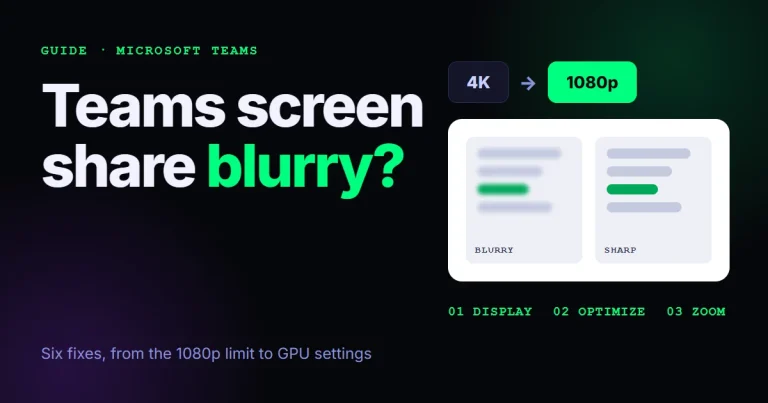
Fix a blurry or pixelated Teams screen share on Windows: the 1080p limit, display resolution, Optimize, GPU and network checks, plus a free live zoom.
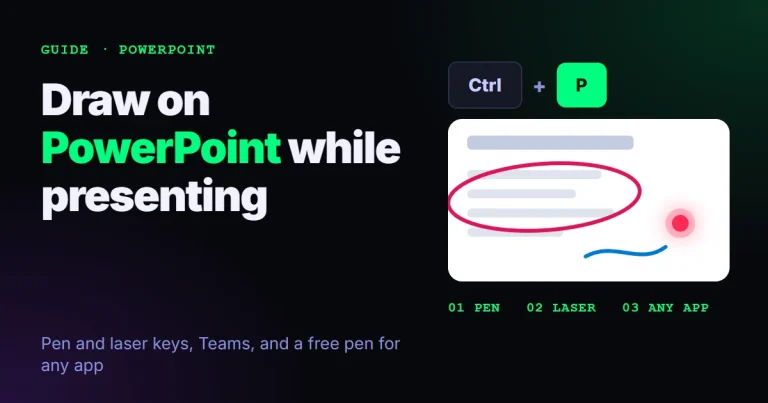
Draw on PowerPoint while presenting with Ctrl + P for the pen and Ctrl + L for the laser, in Teams too. Plus a free pen that works over any app.

Turn on PowerPoint Presenter View on two screens or one with Alt+F5, see your notes, swap screens and present in Teams or Zoom. Steps, keys and fixes.
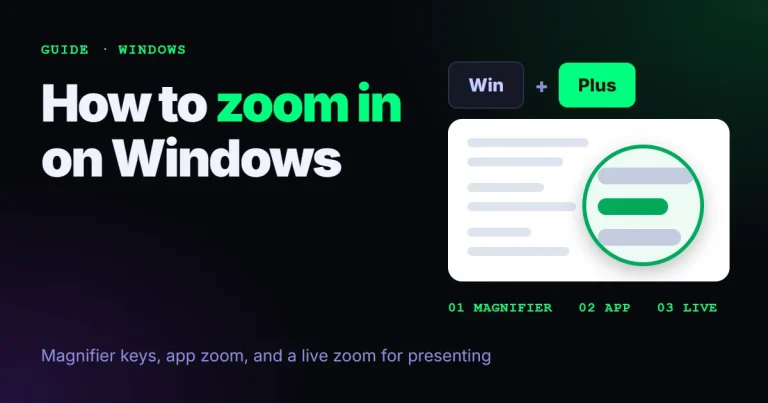
Zoom in on Windows 10 and 11 with Win + Plus, Ctrl + Plus in apps and browsers, or a live zoom for presenting. Every key, and how to zoom back out.
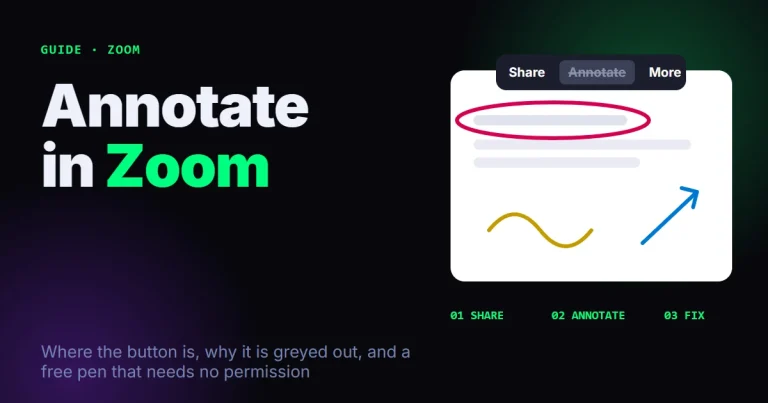
Annotate in Zoom as a presenter or participant, find the missing button and fix a greyed-out one. Plus a free pen that needs no host permission.
Share your whole screen, one window or PowerPoint Live in Teams, with sound or from a chat. Exact Windows steps, plus what viewers really see.

To annotate in Teams, share your screen, move your cursor to the top of it and select Annotate on the presenter toolbar. Everyone in the meeting sees the marks, and participants can ask to draw too. It is built into Teams at no extra cost. For a laser that fades, arrows, or one…
Create a tutorial video for free on Windows: script, record with Snipping Tool or OBS, edit in Clipchamp, and show clicks and keys. Steps and examples.
A presentation timer, speech time calculator, screen share test and shortcut sheets. They run in your browser, with no signup.
Browse the tools →