How to add speaker notes in PowerPoint
Quick answer
To add speaker notes in PowerPoint, select a slide, click Click to add notes under it and type; if the pane is hidden, click Notes in the bottom bar. Only you see them, in Presenter View. Aim for 100 to 165 words a minute. Marking the slide as you talk? SHARA’s pen and laser are free.
Below: how to add, view and print notes, three worked examples sized in seconds per slide, and what notes can’t do when you present on a call. Microsoft’s pages were checked on November 1, 2026.
How to add speaker notes in PowerPoint
- Best for
- Short prompts and full scripts under each slide
- Works on
- PowerPoint for Windows, Mac and the web
- Cost
- Free, part of PowerPoint
- Click View › Normal, so the slide thumbnails and the editing area are showing.
- Click the thumbnail of the slide you want to add notes to.
- Click Click to add notes in the pane under the slide, and type. The pane stays under that slide, and the notes stay with it.
- If you can’t see the pane, click Notes on the task bar along the bottom of the window. Click it again to hide the pane.
- Drag the top edge of the pane upward when you want to see more of a long note.
Note: the steps and labels above are from Microsoft’s Add speaker notes to your slides, which describes the desktop app. The wording of the task bar button can differ slightly between versions.
Add speaker notes in PowerPoint for the web
On the View tab, in the Show group, select Notes, then type under the slide. Microsoft says the web version lets you create notes, but it can’t show them to you while you present, so open the file in the desktop app for the show itself (Microsoft Support).
Use Notes Page view for longer notes with pictures
On the View tab, in the Presentation Views group, select Notes Page. Here you can add charts, pictures or tables to a slide’s notes, and they appear on the printed notes page (Microsoft Support). Plain text is easier to read in the pane, so keep Normal view for ordinary notes.
What are speaker notes in PowerPoint?
Speaker notes are text you attach to a slide that the audience never sees. They can be a script, a list of prompts, a statistic, or a reminder of what to click next. Microsoft puts it this way: during a presentation, the speaker notes are visible on your monitor but aren’t visible to the audience.
That is why they are different from text on the slide. Put on the slide only what the audience needs to read, and put the explanation in the notes. Rehearsing with your notes also gives you a number to work to: Microsoft’s Speaker Coach recommends 100 to 165 words per minute.
How to see your speaker notes while presenting
- Who sees them
- Only you, in Presenter View
- Works on
- The desktop app; the web version can’t show notes
- Limit
- On one monitor you open Presenter View yourself
- Click the Slide Show tab, and check that the Presenter View box is ticked. On Windows it is on by default.
- Click From Beginning.
- On one monitor, click the three dots in the control bar at the bottom left of the slide show, then choose Show Presenter View.
- Read the notes beside your current slide and the next slide. The audience sees only the slide.
Note: on a Mac, open the View menu and click Presenter View. Both paths are from Microsoft’s speaker notes page and Give a presentation in PowerPoint. Sharing on a call changes what your audience receives, so read PowerPoint Presenter View on a call before your first live show.
How to print speaker notes in PowerPoint
- Click File, then Print.
- Under Settings, click the arrow next to Full Page Slides.
- Under Print Layout, choose Notes Pages.
- Choose portrait or landscape, then click Print. Each page holds one slide thumbnail with its notes below it.
Source: Microsoft Support: Create and print notes pages. Print a copy even when you plan to read from Presenter View. A page of notes is a backup if the screen share drops.
How long should speaker notes be?
Work backwards from the time. Divide your minutes by your slides to get seconds per slide, then multiply by your speaking pace. This table does that at the bottom, middle and top of Microsoft’s range.
| Time on the slide | 100 wpm | 130 wpm | 165 wpm | Typical talk |
|---|---|---|---|---|
| 30 seconds | 50 words | 65 words | 83 words | a lightning talk, 10 slides in 5 minutes |
| 45 seconds | 75 words | 98 words | 124 words | a 15-minute talk on 20 slides |
| 60 seconds | 100 words | 130 words | 165 words | a 20-minute demo on 20 slides |
| 90 seconds | 150 words | 195 words | 248 words | a 45-minute lesson on 30 slides |
Paste a full script into the speech time calculator and it splits the time slide by slide, and the presentation timer keeps you to it live. Both run in your browser.
Speaker notes examples for three kinds of talk
Good notes are spoken, not written. They start with what to do, give the line to say, and end with the cue to move on. Each example below is sized to its slot at 130 words a minute.
Lightning talk: one result slide in 30 seconds
Slide 6 of 10, a 5-minute talk.
Pause on the number first. Say it plainly: churn fell from 6.1 to 5.0 percent in one quarter. Two things changed, the welcome email and the day-three check-in. Do not mention the pricing test, that is slide 8. Ask the room: who sends a welcome email today? Take one answer, nod, then click to slide 7 without adding anything.
59 words: about 27 seconds at 130 words a minute. That fits a 30-second slot.
Product demo: one feature slide in a minute
Slide 9 of 20, a 20-minute demo.
Open with the problem, not the feature. Say: last week you exported this report by hand, and it took forty minutes. Now click Export, choose Schedule, pick Monday at 8. The file arrives before anyone is at their desk. Show the schedule dialog on screen and stop talking while it opens. If someone asks about permissions, the answer is on slide 14. Land on the benefit: forty minutes back every week, for every analyst on the team. Then ask who builds a weekly report today, and listen for the groan. If the room is quiet, say that most teams only notice the cost when someone leaves and the report stops. Move on to slide 10.
115 words: about 53 seconds at 130 words a minute. That fits a 60-second slot.
Class lesson: one teaching slide in a minute and a half
Slide 12 of 30, a 45-minute lesson.
Read the question aloud: why does a river bend? Wait five seconds before anyone answers. Prompt with faster water on the outside of the curve. Then explain that fast water digs the outer bank and slow water drops sand on the inner bank, so the bend grows over time. Draw the arrow on the slide while you say it. Check with the class: which bank is steeper? Take two answers. If they are unsure, point back to the photograph on slide 11. Next slide only when most hands agree. If time is short, skip the photograph and give the one-line rule instead: water moves faster on the outside of a bend, so that bank wears away first. Write the key word, erosion, on the board and ask the class to copy it into their notes before you move on.
139 words: about 64 seconds at 130 words a minute, plus about 20 seconds for the question. That fits a 90-second slot.
Teaching from slides? SHARA for teachers covers marking up a lesson as you go.
When notes can’t help: point at the slide while you present
Speaker notes are for you. They cannot point at a number on screen, circle a step or follow your voice. A free-forever overlay can:
- Free forever: a cursor halo with a click flash, the Pen, Laser, Arrow, Text and Eraser.
- Free for your first 14 days: Live Zoom, the lens and Spotlight, for the small print on a dense slide.
- Over any app: the ink sits above PowerPoint, your browser and the call, so one tool covers the whole talk.
Mark up a slide while you talk with SHARA
- Install SHARA free from the Microsoft Store. There is no account, and it waits in the background for a hotkey.
- Hold Ctrl+Space to open the Wheel, then choose the Draw slice and pick Laser or Pen.
- Point at the number or step your note is about, and draw while you say the line.
- Choose Erase on the toolbar to clear the ink before the next slide.
- On a call, share your entire screen, not one window, so your audience receives the ink. See how to share your screen on Teams.
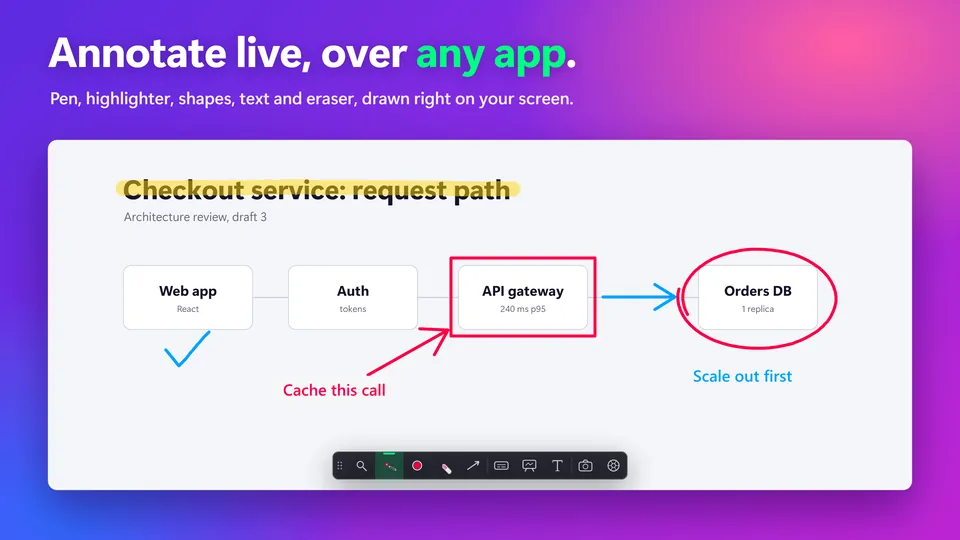
The screen annotation page lists every drawing tool, and PowerPoint shortcuts covers PowerPoint’s own pen keys.
When SHARA isn’t the right fit
SHARA does not hold, show or edit your notes: Presenter View does that. It is Windows only, and after the 14-day trial its zoom and shape tools are a one-time upgrade. If you present from the web version of PowerPoint, you still need the desktop app to see your notes on screen.
Speaker notes in PowerPoint: FAQ
How do I add speaker notes in PowerPoint?
Click the slide, then click Click to add notes in the pane under it and type. If you can’t see the pane, click Notes on the task bar at the bottom of the window.
What are speaker notes in PowerPoint?
Speaker notes are text attached to a slide that only you see on your own monitor during a presentation. The audience sees only the slide. Use them for a script, prompts or reminders.
Can the audience see my speaker notes?
Not in a normal slide show: Microsoft says the notes are visible on your monitor but not to the audience. On a call, check which screen or window you share, so Presenter View isn’t part of it.
How do I print speaker notes?
Go to File › Print, open the arrow beside Full Page Slides, and choose Notes Pages under Print Layout. Each page shows one slide with its notes.
How many words should speaker notes be?
Take your seconds per slide and multiply by your pace. At 130 words a minute, a 60-second slide needs about 130 words. Microsoft’s Speaker Coach recommends 100 to 165 words a minute.
Is SHARA free for presenting?
The cursor halo, click flash, Pen, Laser, Arrow, Text and Eraser are free forever. The zoom modes and shapes are free for your first 14 days, then a one-time purchase. Get SHARA from the Microsoft Store.
None of these worked: what now?
Check you are in Normal view, then click Notes on the task bar. If notes won’t show during the show, open the file in the desktop app, since the web version cannot show them. Then tick Presenter View on the Slide Show tab.
Read your notes. Let SHARA do the pointing.
Draw, point and zoom over any app while you talk. Free to start, with no account.
Sources
Mashyo makes SHARA. Microsoft Teams, Zoom, PowerPoint and Windows are Microsoft or Zoom products; other names belong to their owners; none is affiliated with SHARA. Microsoft and competitor facts on this page were checked on November 1, 2026 on their official pages.