How to Draw on Screen in Windows 11: Built-in vs Free App
Quick answer
Windows 11 can mark up a screenshot, but it has no built-in pen that stays on top of your running apps. For a capture, turn on Quick markup in Snipping Tool with Ctrl+E and draw before you save. To draw over live apps, slides or a call, use a free overlay: SHARA’s Pen and Laser are free forever, with no account.
Below, every built-in way is compared and walked through step by step, then the free way to draw over anything, including a screen share. Windows and competitor facts were checked on November 1, 2026.
Every way to draw on a Windows screen, compared
| Option | Where the ink goes | What you keep | Seen in a screen share |
|---|---|---|---|
| Snipping Tool Quick markup | The area you capture (Windows 11) | A screenshot | Not described as an overlay |
| Pen menu (Windows Ink) | Nowhere: it opens apps | OneNote, Whiteboard, Journal | Not a drawing layer |
| PowerPoint slide show pen | The slide show only | Pen, laser and eraser keys | Yes, inside the show |
| Teams or Zoom annotate | What you share in that call | Ink for that meeting | Yes, in that meeting |
| Epic Pen Basic | Any app | Pen, highlighter, eraser | Overlay: share the whole screen |
| SHARA (free tools) | Any app, any window | Pen, Laser, Arrow, Text, Eraser | Yes, entire-screen share |
The short version: Windows can mark up a screenshot, and your slides or meeting app can mark up what it shows. Nothing built in puts a pen above everything, which is what you need when you teach, demo or present across apps.
How to draw on a screenshot with Snipping Tool (Windows 11)
Best when the result is a picture: a bug report, a how-to image or a marked-up chart.
- Best for
- Marking up a screenshot
- Tools
- Pen, highlighter, eraser, shapes and emojis
- Limit
- Draws on the capture, not over running apps
- Cost
- Built into Windows 11
- Press Win+Shift+S, or open Snipping Tool from Start.
- Turn on Quick markup before you capture: select its button on the Snipping Tool toolbar, or press Ctrl+E.
- Select the area. The markup toolbar offers a pen, a highlighter, an eraser, shapes and emojis, and you can drag the grabbers to re-crop.
- Draw, then finish the capture. Microsoft notes that share or Ask Copilot don’t copy the image to the clipboard or save it, so finish the screenshot first.
What it can’t do: Microsoft describes marking up the area you are capturing, not ink that stays on screen while you keep working. Some outlets call it live, so test it on your PC: if the ink disappears when you leave the capture, it is not an overlay. It arrived in Snipping Tool 11.2508.24.0 for Windows Insiders on September 17, 2025 (Windows Insider blog); we found no general release date. If the button is missing, update Snipping Tool from the Microsoft Store.
How to open the pen menu and Windows Ink
For touchscreens and pen devices. The pen menu is a launcher, not a drawing layer.
- Best for
- Opening OneNote, Whiteboard or Journal with a pen
- Limit
- It opens apps; it doesn’t draw on the screen
- Cost
- Built into Windows
- Open Settings › Personalization › Taskbar, or right-click the taskbar and choose Taskbar settings.
- Under the system tray icons, turn on Pen Menu.
- Tap the pen icon in the system tray. Its default shortcuts are OneNote, Whiteboard, Snipping Tool and Journal, and you can pin up to four apps.
Pen options live in Settings › Bluetooth & devices › Pen & Windows Ink. Microsoft’s Windows Ink page says Sketchpad “was only available in earlier versions of Windows”, and on Windows 10 it points to Snip & Sketch for drawing on screenshots: again a capture, not the live screen. A Whiteboard shortcut gives you an empty board in its own window; if that is what your meeting needs, see the Teams Whiteboard guide.
How to draw inside PowerPoint, Teams or Zoom
- PowerPoint slide show: Ctrl+P turns the pointer into a pen, Ctrl+L into a laser and Ctrl+E into the eraser, and E erases all ink on the slide (keys from Microsoft Support, on our PowerPoint shortcuts sheet). It works only inside the show; the PowerPoint drawing guide goes through it.
- Teams and Zoom: both annotate what you share, from their own toolbar, inside that meeting. Steps and the usual reasons the button is missing are in the Teams and Zoom annotation guides.
The catch: three apps, three toolbars, three sets of keys. If you present across apps, you re-learn a pen every time you switch window.
How to draw over any app on Windows, free
One pen above every window works the same over slides, a browser, an editor or a call.
- Best for
- Teaching, demos and presenting across apps
- Free tools
- Pen, Laser, Arrow, Text and Eraser, no account
- Limits
- Windows only; line width doesn’t follow pen pressure
- Install SHARA free from the Microsoft Store. There is no account, and it waits in the background for a hotkey.
- Hold Ctrl+Space and choose Draw. The Wheel opens at your pointer; the Pen and Laser are free, and the docked toolbar has the same tools.
- Draw. Ink lands above whatever is running, and the Laser’s trail fades by itself after about 2.6 seconds.
- Press Ctrl+Z to undo the last stroke or Ctrl+Win+B to clear all ink. The Eraser is on the Wheel’s Erase slice.
- In Teams, Zoom or Meet, share your entire screen, not one window: a window share captures only that window. Run the screen share test if you are unsure what viewers see.
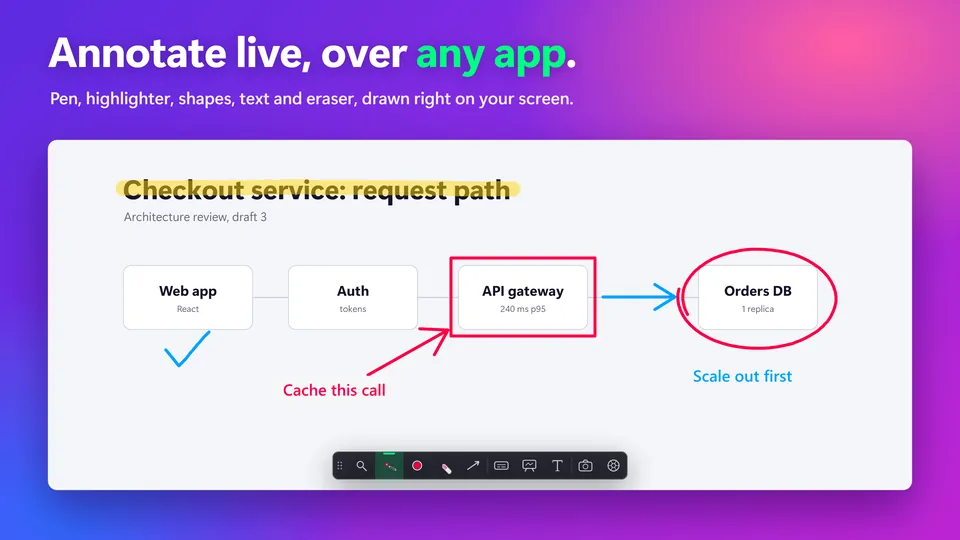
Every tool is on the screen annotation page, every key on the shortcuts page, and teachers will find the same setup in SHARA for teachers.
Epic Pen and other overlays
- Best for
- A simple free pen and highlighter over any app
- Free (Basic)
- Pen, highlighter, eraser, screenshot tool, 16 colours
- Limits
- Text, shapes, arrows and fading ink are in Pro; Basic can show in-app promotions
Epic Pen is the best-known one. Its Basic version is free, with a pen, highlighter, eraser, screenshot tool and 16 colours. Its page lists the text tool, shapes and arrows, whiteboard, fading ink and a highlighted cursor under Pro, and its FAQ says Basic can show in-app promotions. It runs on Windows 10 and 11 per its page today. Our Epic Pen alternative page compares the two row by row, including where Epic Pen is the better pick.
How to choose
- One marked-up screenshot: Quick markup is already on your PC.
- Slides only: the PowerPoint slide show pen is enough.
- Teaching, demos or presenting across apps: an overlay, picked by whether its free tools include what you use, such as a pen, a laser and an eraser.
When SHARA isn’t the right fit
It is Windows only, line width doesn’t follow pen pressure, and the highlighter and shapes need the 14-day trial or the upgrade. A longer list of tools with real cons is in the Windows annotation tools roundup on Creator Kit.
Drawing on a Windows screen: FAQ
Is there a built-in way to draw over apps in Windows 11?
Not one that stays on top of your apps. Snipping Tool’s Quick markup (Ctrl+E) draws on the area you capture, and the pen menu only opens apps. For ink over live apps you need an overlay such as SHARA or Epic Pen.
How do I draw on screen in Windows 10?
Quick markup is announced for Windows 11, so on Windows 10 capture the screen with Snip & Sketch and draw on the capture. For ink over live apps, SHARA runs on Windows 10 and 11 with the same free tools.
Will my audience see what I draw in Teams or Zoom?
Yes, if you share your entire screen: an overlay sits above your windows, so a single-window share doesn’t capture it. Teams and Zoom also have their own tools; see the Teams annotation guide.
Is SHARA free for drawing on screen?
Yes. Pen, Laser, Arrow, Text, Eraser, Undo, Clear and screenshots are free forever, with no account. The Highlighter, Line, Rectangle, Circle and the Whiteboard are free for your first 14 days, then a one-time upgrade.
Can I draw with a pen display or graphics tablet?
Yes. SHARA reads pen tablets and pen displays directly. Line width doesn’t follow pen pressure, so a stylus draws at the width you set, like a mouse does.
None of these worked: what now?
Check three things: SHARA is running (its halo or toolbar shows), you shared the entire screen and not one window, and your meeting app isn’t blocking the share. Still stuck? Contact the team from the SHARA FAQ page.
Point and draw over your next screen share
Install SHARA, share your entire screen, and mark up the first slide with the Laser. No account, nothing sent online.
Sources
Mashyo makes SHARA. Windows, Snipping Tool, PowerPoint and Teams are Microsoft products; Zoom and Epic Pen belong to their owners; none is affiliated with SHARA. Microsoft and competitor facts on this page were checked on November 1, 2026 on their official pages.