How to use Whiteboard in Microsoft Teams
Quick answer
To use Whiteboard in a Teams meeting, select Share, then Microsoft Whiteboard under the Whiteboard section, and everyone in your organization can draw on the same board. It is included with Teams. To draw over what you are already showing, such as slides, a worksheet or a website, instead of a blank board, SHARA is a free Windows overlay.
This guide covers how to start a Teams whiteboard, who can join it, where it is saved, and when drawing on your shared screen suits a lesson better. Microsoft’s pages were checked on November 1, 2026.
How to use Whiteboard in a Teams meeting
Whiteboard is a shared canvas: it opens as its own board that attendees draw and type on together. It is not a layer over your screen, so your slides and apps are hidden while it is shared.
- Who
- People in your organization, in the meeting
- Works on
- Teams on Windows, Mac, iOS, Android and the web
- Cost
- Included in Teams
- Join the meeting.
- In the meeting controls, select Share.
- Under the Whiteboard section, select Microsoft Whiteboard. The board opens for everyone in the meeting.
- Select Pen, choose a colour, then draw or write on the board.
- Select Note or Text to add typed words, and drag objects to move them.
- Select Stop sharing in the meeting controls when you are done.
Note: on a phone, join the meeting, select More options, then Share Whiteboard. These labels come from Microsoft’s Whiteboard-in-Teams page, which Microsoft marks as out of date, so a newer Teams build may word a button differently. Open the Share menu before class and look.
Where the board is saved after the meeting
- The board stays in the meeting chat, in a tab named Whiteboard, so attendees can open it again.
- New boards are stored in the OneDrive of the person who created them; Microsoft’s admin page lists that user as the owner.
- The board is not part of the meeting recording, according to Microsoft’s older page. Save a picture of it if you need it in the video.
- To keep working on an earlier board, Microsoft says you can now share a whiteboard you already made. Prepare it before the lesson.
Who can draw on a Teams whiteboard
| Who | What Microsoft says | Source |
|---|---|---|
| People in your organization | Can start the board and draw on it. Whiteboard makes a link that anyone in the organization can open | Microsoft Learn: Manage sharing |
| External and shared-device accounts | Can view and collaborate during the meeting only, and only if an admin turned it on. The share button doesn’t appear for them | Microsoft Learn: Manage sharing |
| Anonymous users | Blocked if Anonymous users can interact with apps in meetings is off (it is on by default). In Teams channel meetings they can’t see the board | Microsoft Learn: Manage sharing |
| Calls | In a one-on-one call across organizations, only the person who started the conversation sees the Whiteboard button. Same-organization calls: anyone can start it | Microsoft Learn: Manage sharing |
| Recording | A shared whiteboard is not part of the recording | Microsoft Support (older page) |
If students are outside your school’s tenant, the board may not work for them, and the fix is an admin setting, not something you can change in the meeting. A fallback that needs nothing from the admin is to keep sharing your screen and draw over it (below).
Teams Whiteboard or drawing on your shared screen?
They solve different jobs. Pick by what the class needs to see.
| Teams Whiteboard | Teams Annotate | SHARA | |
|---|---|---|---|
| Best for | A blank shared board | Marking up the screen you share | Drawing over any app you show |
| What students see | The board only | Your shared screen plus marks | Your shared screen plus your ink |
| Who can draw | Everyone in your organization | You, or anyone you allow | You |
| Needs the meeting app | Teams | Teams | No: works in any meeting app |
| Cost | Included in Teams | Included in Teams | Pen, Laser, Arrow, Text and Eraser free |
If the class should write on your slides, see how to annotate in Teams: it lets participants request the pen on a shared screen. Microsoft describes it as running on Whiteboard tools (Microsoft Support).
Teaching on a laptop: mouse, pen or touch
Microsoft’s page lists the Pen, Note and Text tools but does not describe mouse input separately, so treat handwriting with a trackpad as something to test.
- Open a board in a test meeting by yourself, then write a short line with the Pen.
- If the line is shaky with a mouse or trackpad, use Note or Text for labels and keep the Pen for circles and arrows.
- On a touch screen or with a stylus, write directly on the board.
- Put the questions you will ask on a Note before class, so you are not typing mid-lesson.
When Teams Whiteboard can’t: draw over your lesson with SHARA
Whiteboard is the right first try for brainstorming and group work. These are the cases it does not cover, and where a free overlay does:
- You are teaching from something that already exists. A PDF worksheet, a website or a spreadsheet stays on screen and you draw on it.
- Your class is outside your organization. A screen share works for anyone in the meeting, with no board to be admitted to.
- You use Zoom or Google Meet. The same Pen and Laser work in every meeting app.
- You want a pointer that cleans itself up. The Laser trail fades after 2.6 seconds, so there is nothing to erase.
- You want a clean board for yourself. SHARA has a white, black or grid Whiteboard mode that covers the desktop. It is a Pro tool, included in the 14-day trial.
Set up SHARA for a lesson
- Install SHARA free from the Microsoft Store. There is no account, and it waits in the background for a hotkey.
- In Teams, select Share and choose your entire screen, then open the worksheet or slides.
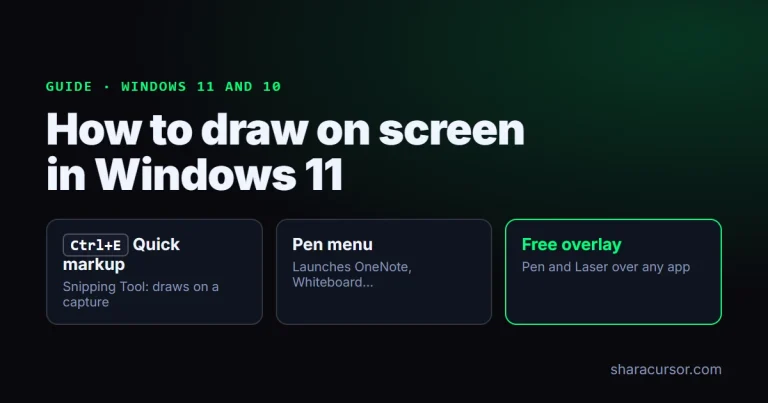
- Hold Ctrl+Space to open the Wheel at your cursor, choose Draw, then Pen or Laser.
- Draw. Press Ctrl+Z to undo a stroke and Ctrl+Win+B to clear all ink.
- Check one student sees your ink before class. A single-window share leaves it out; how to share your screen on Teams explains which share to pick.
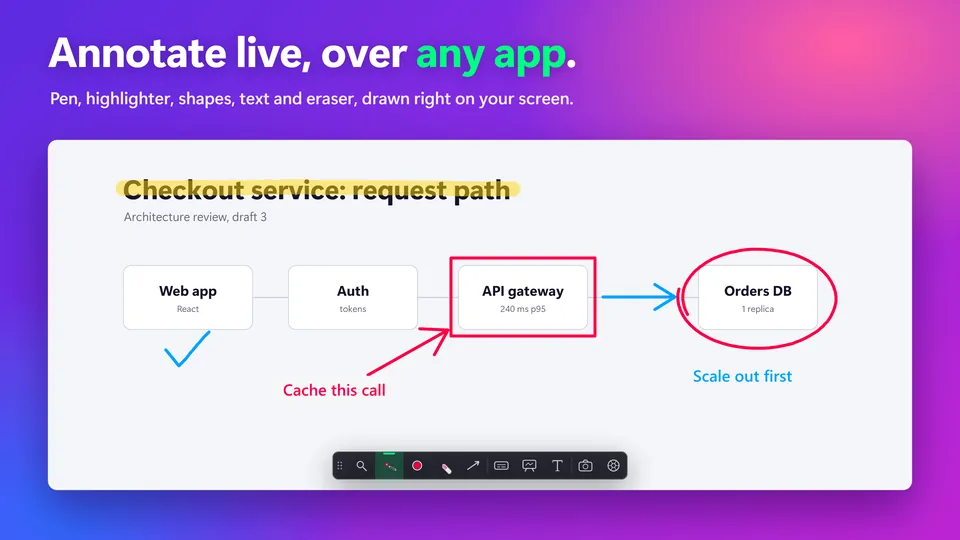
The teacher guide walks through a full lesson, and the screen annotation page lists every drawing tool.
When SHARA isn’t the right fit
Use Teams Whiteboard when students need to write on the board themselves: viewers cannot draw on your screen with SHARA. It is also Windows only, and a managed school PC may block Store apps.
Teams Whiteboard: FAQ
Where is Whiteboard in Teams?
Join a meeting, select Share, and look under the Whiteboard section for Microsoft Whiteboard. On a phone, use More options › Share Whiteboard.
Can external students use a Teams whiteboard?
Only if an admin allows it. Microsoft says external accounts can view and collaborate during the meeting only, and the setting is off until a tenant admin enables it.
Is a Teams whiteboard saved?
Yes. It stays in the meeting chat under a Whiteboard tab and new boards are stored in OneDrive. Microsoft says it is not part of the meeting recording.
Can students draw on my screen share in Teams?
Not with SHARA. For that, use Teams Annotate, where participants can request the pen: how to annotate in Teams.
Can I use a whiteboard in a one-on-one Teams call?
In a call between two people in the same organization, either can start it. Across organizations, only the person who started the conversation sees the button.
Is SHARA free for teaching?
Yes. Pen, Laser, Arrow, Text, Eraser and the cursor halo are free forever. Pro tools, including the Whiteboard mode, are free for 14 days, then a one-time upgrade. Get SHARA from the Microsoft Store.
None of these worked: what now?
Test the share menu in a meeting with only you in it, and ask your admin whether Whiteboard is on for your tenant. Or share your screen and draw over your material with SHARA. Blurry share? See Teams screen share blurry.
Draw on your next lesson
Share your screen, hold Ctrl+Space and pick the Pen. The same tools work in Teams, Zoom and Meet.
Sources
Mashyo makes SHARA. Microsoft Teams, Zoom, PowerPoint and Windows are Microsoft or Zoom products; other names belong to their owners; none is affiliated with SHARA. Microsoft and competitor facts on this page were checked on November 1, 2026 on their official pages.