How to VOD review your gameplay
Quick answer
A VOD review is rewatching a recording of your own match to find the mistakes you couldn’t see while playing. Record or download the game, pause at each decision in any player, and leave with one fix. To draw or spotlight a moment as you go, SHARA’s Pen and Laser are free forever.
Below, the tools compared in one table, the review steps, how to get the recording, and how to draw on it while you review. Tool facts were checked on November 1, 2026. This guide is about reviewing recordings and replays after a match.
VOD review tools compared: what each one is for
| Option | What it does | Drawing on the video | Cost and limits |
|---|---|---|---|
| A game’s built-in replay | Rewatch a match inside the game | No | Own matches; Insights says Valorant replays last about one patch cycle and can’t be clipped or shared |
| Any video player + a recorder | Rewatch a file you recorded, at any speed | No | Free with OBS or similar; you keep the file |
| Insights Capture + VOD review | Records, auto-tags Valorant kills and deaths, timestamped comments | Yes, on the frame | Free plan; more on paid plans (prices not on the pages I read) |
| Vodon Pro | Plays several videos in sync, frame by frame, with bookmarks | Yes, on the frame | Free, open source; the author says it is not actively maintained |
| ValoPlant | Rebuilds Valorant replays as a 2D map for strategy | Yes, on the 2D board | Valorant only; free with ads, Premium removes them; needs the Overwolf client |
| SHARA (free tools) | Draws and spotlights live over any player or replay window | Yes, live over the screen | Windows only; doesn’t record or store comments |
The short version: a player plus a recording does the reviewing. The specialist tools add timestamps, frame-accurate drawing or a 2D map. A live overlay is the quick way to point at something while you talk, in whatever player or replay viewer you already use.
What “VOD review” means
VOD means video on demand, and in esports it is the recorded match. Insights defines a VOD review as rewatching recordings of your own matches to find mistakes you couldn’t see while playing. Coaches run it for a player or a team; players run it on themselves. The method is the same for Valorant, League of Legends or any other game.
How to VOD review, step by step
The workflow below follows Insights’ VOD review guide, in our wording.
- Best for
- Solo players and coaches reviewing one match
- Tools
- A recording or replay and any video player
- Time
- Insights suggests one focused 20 minutes a week beats a long monthly session
- Cost
- Free
- Pick one match, ideally a loss, and open its recording or replay.
- Watch it once at normal speed.
- Pause at each mistake and write down what you knew at that moment and what you should have done with it.
- Group your notes into two or three themes.
- Choose one habit to fix, such as crosshair placement or when you take a fight.
- Play your next games with that one fix in mind.
- Review a win now and then, because you can find mistakes that happened to work.
Team reviews: one person drives the video and everyone watches the same frame. Stop on decision points, not only on deaths.
How to get the recording: built-in replay or your own
Some games keep a replay for you, but it doesn’t last. Recording yourself keeps the file.
- Valorant
- Career tab, the match, Download replay, then Watch; Insights says it lasts about one patch cycle and covers your own matches
- League of Legends
- End of Game screen or Match History; replays last one patch cycle and the client keeps the last 20 games
- Limit
- Neither is a video file you can keep, edit or share
- In Valorant, open the Career tab, pick the match and select Download replay, then Watch (steps from Insights’ replay article). Check Riot’s own replay FAQ for which modes are covered: the sources I read disagree.
- In League of Legends, use the download button on the End of Game screen or in Match History, then Watch Replay (Riot Support).
- To keep a game for good, record it with OBS or another recorder and review the file in any video player.
Note: Riot’s League page says replays show gameplay only, not chat. Voice and text are not in the replay, so note callouts from memory or record your voice comms yourself.
How to draw and spotlight on a VOD while you review
A pen over the video is the fastest way to say “look here” to a player or a team, with no editing step.
- Best for
- Coaches and players pointing at a moment on screen
- Free tools
- Pen, Laser, Arrow, Text and Eraser, no account
- Free for 14 days
- Spotlight, which dims the screen around the pointer
- Limits
- Windows only; ink is live, not saved with the video
- Install SHARA free from the Microsoft Store. There is no account, and it waits in the background for a hotkey.
- Open the recording or replay in your player or replay viewer and pause on the moment.
- Hold Ctrl+Space and choose Draw. The Wheel opens at your pointer; the Pen and Laser are free.
- Draw on the frame. The Laser’s trail fades by itself after about 2.6 seconds, so it works for tracing a player’s path while the video plays.
- To dim everything but one player, hold Ctrl+Space and choose Magnifier, then Spotlight.
- Press Ctrl+Z to undo the last stroke, or Ctrl+Win+B to clear all ink before the next moment.
- Reviewing on a call? Share your entire screen, not one window, so people see the ink. There is no built-in drawing in Discord; the Discord screen share guide covers it.
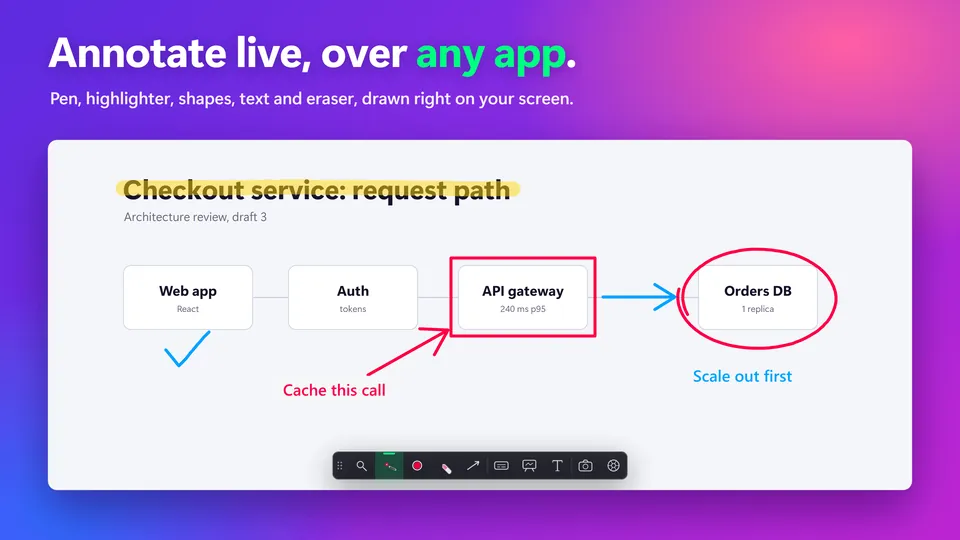
Every tool is on the screen annotation page, the zoom and Spotlight modes are on the screen zoom page, and the game coaching page shows the coaching setup.
Insights, Vodon Pro and ValoPlant: what they do and where they fall short
These three are built for the job, and each does something a pen overlay can’t. Their pages are the source for everything below.
Insights Capture and VOD review
- Best for
- Recording, then reviewing with timestamped comments
- Free
- A free plan with recording, highlight clipping and VOD storage
- Limits
- Extra features need a paid plan; prices weren’t on the pages I read
Insights Capture tags kills, deaths and spike plants in Valorant automatically, and its review workspace lets you pin comments to a timestamp and draw on the frame. The cons: it is a service you upload to, and its free plan has limits.
Vodon Pro
- Best for
- Frame-by-frame review of several camera views at once
- Free
- Open source (GPL-3.0), no ads or tracking
- Limits
- The author says it isn’t actively maintained; no releases are listed
Vodon Pro plays several videos in sync, steps frame by frame, lets you draw on individual frames and keep bookmarks, and reads MP4, MKV and WebM files. Windows, Linux and macOS are listed as tested. The con is upkeep: its README says the build no longer supports the latest Electron, and there is a beta web version.
ValoPlant
- Best for
- Valorant coaches who want a 2D map of the round
- Free
- Free with ads; Premium removes them
- Limits
- Valorant only; needs the Overwolf client; desktop only
ValoPlant rebuilds imported Valorant replays on the map, adds line-of-sight cones and turns a moment into a strategy your team can practise. Version 1.1.11 was updated on October 28, 2026. It isn’t a video review tool: you review a reconstruction, not the footage.
How to choose
- Reviewing your own games: a recording, any video player and a notepad are enough.
- Timestamps and comments you can share: Insights.
- Frame-accurate drawing on several views: Vodon Pro.
- A Valorant round on a map: ValoPlant.
- Pointing live while you talk, in any player or replay viewer: an overlay.
When SHARA isn’t the right fit
It doesn’t record, so you still need a recorder or a game replay. It has no frame-by-frame stepping, no timestamped comments and no storage: the ink is live and isn’t saved with the video. It is Windows only, line width doesn’t follow pen pressure, and Spotlight needs the 14-day trial or the upgrade. For a library of notes a team revisits, use one of the tools above.
VOD review: FAQ
What is a VOD review?
A VOD review is rewatching a recording of your own match to find the mistakes you couldn’t see while playing. VOD means video on demand, and in esports it is the recorded game.
How do I VOD review Valorant?
Download the replay from the Career tab or record your match, then watch it once and pause at each mistake. Write down what you knew, group the notes into themes and take one fix into your next games.
What is the best software for VOD review?
It depends on the job. A video player and a recorder cover most reviews. Insights adds timestamps, Vodon Pro adds frame-by-frame drawing, ValoPlant adds a 2D map, and an overlay such as SHARA lets you draw live.
Can I draw on a VOD for free?
Yes. SHARA’s Pen, Laser, Arrow, Text and Eraser are free forever and draw over any player. Vodon Pro and Insights also draw on frames, and both have free options.
Does Valorant have a replay system?
Insights says it arrived in September 2025 and lasts about one patch cycle for your own matches, with no clipping or sharing. Check Riot’s replay FAQ for the modes it covers, and record the game to keep it.
Is SHARA free for VOD review?
Yes for drawing. Pen, Laser, Arrow, Text, Eraser and screenshots are free forever, with no account. Spotlight, the highlighter and shapes are free for your first 14 days, then a one-time upgrade.
None of these worked: what now?
Check that SHARA is running (its halo or toolbar shows), and that you shared your entire screen on a call. Still stuck? Contact the team from the SHARA FAQ page.
Point at the mistake, right on the frame
Install SHARA, pause your VOD and mark up the moment with the Pen or Laser. No account, nothing sent online.
Sources
Mashyo makes SHARA. Valorant and League of Legends belong to Riot Games; Insights, Vodon Pro, ValoPlant, Overwolf, OBS and Discord belong to their owners; none is affiliated with SHARA. Microsoft and competitor facts on this page were checked on November 1, 2026 on their official pages.