
Open the Wheel and the toolbar
The Wheel and the toolbar hold the same SHARA tools, and both are free forever. Hold Ctrl+Space to open the Wheel at your cursor, move toward a slice and let go to pick it. Or keep the docked toolbar on screen and press Ctrl+Win+A to swap between the two.
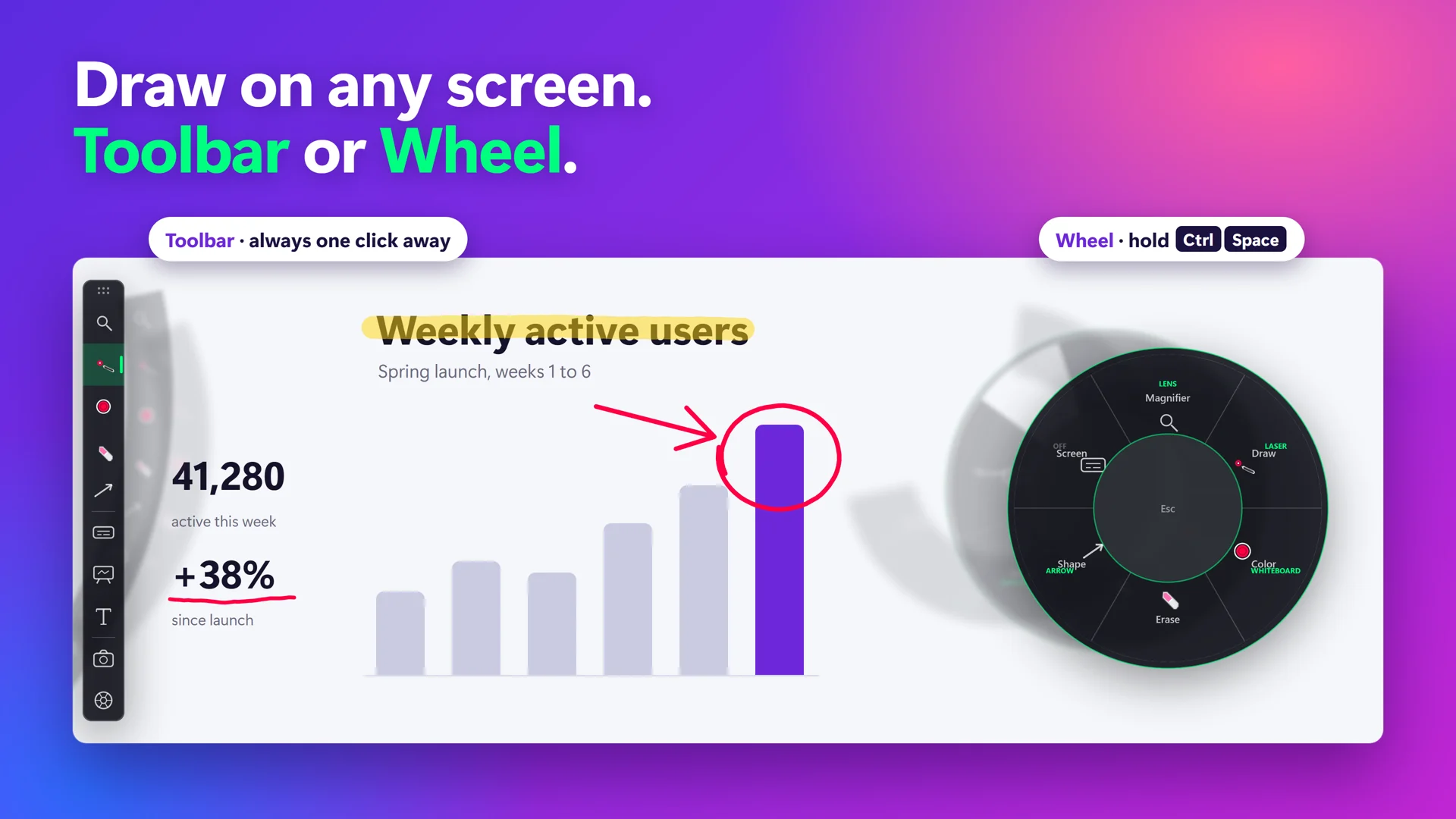
Hold Ctrl+Space to pick a tool#
- Hold Ctrl+Space.The Wheel opens centred on your cursor. With a Chinese input language installed, hold Ctrl+Alt+Space instead.
- Move toward a slice.The inner ring picks the tool and the outer ring picks its mode, such as Pen or Laser in Draw. In the centre hub SHARA names the slice under your pointer.
- Let go of the keys.SHARA arms what you pointed at and closes the Wheel. Letting go over the centre hub picks nothing.
- Press Esc or right-click to close the Wheel without picking.Nothing changes.
Free to install. The Wheel and toolbar never expire.
Download free fromView onMicrosoft StoreFree forever: cursor halo, click animation, Pen, Laser, Arrow, Text, Eraser, Screenshot and the Ctrl+Space Wheel. Every Pro tool is free for your first 14 days, with no card and no account. After that, Pro is a one-time purchase ($19.99 in the US). See pricing and the 14-day trial →
Tap Ctrl+Space to keep it open#
- Tap Ctrl+Space quickly and keep the pointer in the centre.A press shorter than a quarter of a second, released over the hub, pins the Wheel open.
- Click a slice or a mode.The Wheel closes and the tool is armed.
- Tap Ctrl+Space again, press Esc or right-click to close a pinned Wheel.Nothing is picked.
The six slices#
Clockwise from the top. Each tool’s page has the details: draw tools, magnifier, keystroke pill and whiteboard and colors.
| Slice | Modes | Free or trial |
|---|---|---|
| Magnifier | Lens, Spotlight, Live Zoom, Broadcast | Free for 14 days, then locked |
| Draw | Laser, Pen, Highlighter | Laser and Pen free forever. Highlighter free for 14 days |
| Color | Your colour set, up to four colours | Free for 14 days, then locked |
| Erase | All, Eraser, Hide | Free forever |
| Shape | Line, Rectangle, Circle, Arrow | Arrow free forever. The other three free for 14 days |
| Screen | Keys, Board, Text | Text free forever. Keys and Board free for 14 days |
Use the keyboard or scroll#
- Press Left Arrow or Right Arrow to move between slices.The first press selects a slice; the Wheel keeps following the keys until you move the mouse.
- Press Up Arrow or Down Arrow to step through a slice’s modes.In a slice with no modes they move between slices instead.
- Press Enter or Space to pick.It arms the highlighted mode.
- Scroll the mouse wheel while pointing at a slice to change that tool’s value.Erase has no scroll value. A scroll does not pick the tool by itself.
Switch to the docked toolbar#
SHARA starts with the toolbar: a slim strip docked on the left edge of your screen, halfway down. It holds the same tools as the Wheel, in this order: Pointer, Magnifier, Draw, Color, Erase, Shape, Keys, Board, Text, Undo, Shot and Wheel.
- Press Ctrl+Win+A to turn the toolbar into the Wheel.The toolbar leaves the screen and the Wheel is your surface. Press Ctrl+Win+A again, or click SHARA Toolbar in the tray menu, to bring the toolbar back. The Wheel button at the bottom of the toolbar does the same as the first press.
- Drag the toolbar toward any screen edge and let go.It docks to the left, top, right or bottom edge of the monitor it is on.
- Click the dotted grip at the end of the toolbar to collapse it.Click the grip again to expand it.
Ctrl+Space opens the Wheel even while the toolbar is showing. The Wheel grows with your halo size, up to a limit.
If it doesn’t work#
If it doesn’t work
- Ctrl+Space does nothing. Another app may hold the keys. Rebind the Wheel hotkey. Also check that SHARA is on: Ctrl+Win+Z turns all of it off and on.
- Ctrl+Win+A shows “Turn on the SHARA Wheel and give it a shortcut”. The Wheel is off or has no shortcut. Give it one in Settings, then switch again.
- A slice shows a padlock. Its tools were part of your 14-day trial. See what stays free.
- Viewers see the Wheel, or can’t see your ink. Hide the Wheel and toolbar from capture, and share the screen, not a window.
More in Getting started: What is SHARA? · Update and uninstall.