Draw on your screen with SHARA
SHARA draws on a transparent layer above every app, so the window underneath keeps running. Laser, Pen, Arrow, Text and the Eraser are free forever. This page shows how to start each one, change the pen width and text size, and undo, clear or hide your ink.
Quick path
- Hold Ctrl+Win+X and move: that is Laser or Pen.
- Hold Shift while you draw with the Pen or Highlighter: that run of the stroke goes straight, in 45° steps. The Line shape (Ctrl+Win+W) does the same.
- Press Esc or right-click to put the tool down.
Press Ctrl+Z to undo, Ctrl+Win+B to clear.
Draw with Laser and Pen#
Laser and Pen share one key combination. The Laser leaves a trail that fades by itself after 2.6 seconds: it points, it does not mark. The Pen leaves ink that stays until you erase, undo or clear it.
The green ring around your pen is the cursor halo. Ctrl+Win+H hides it, and the pictures on this page show it hidden. Hide the halo has the settings.
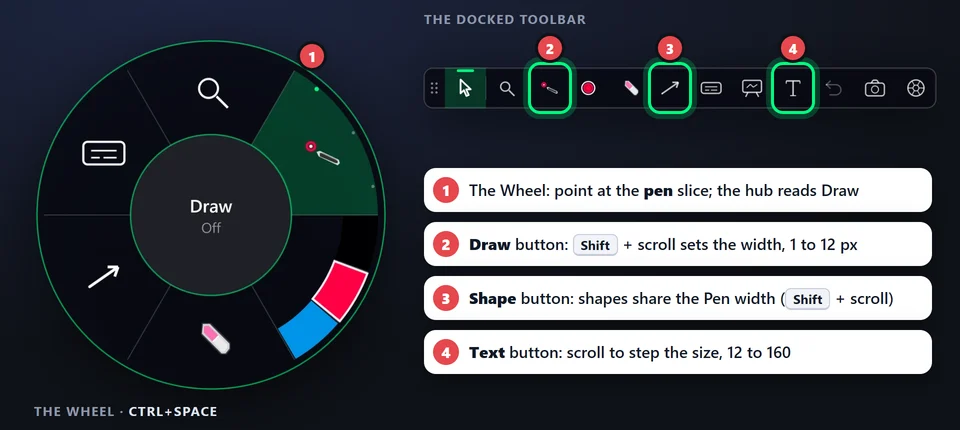
- Choose Laser or Pen.Open the Wheel with Ctrl+Space, move to the pen slice (the hub reads “Draw”) and pick “Laser” or “Pen”. On the docked toolbar, use the “Draw” button. Laser is the default.
- Hold Ctrl+Win+X and move the pointer.Your stroke follows the pointer for as long as you hold the keys. Let go and SHARA stops drawing. This is the default Hold mode.
- Press Ctrl+Z to take back the last mark.Or press the “Undo” button on the toolbar. Undo keeps up to the last 32 marks.
Free to install. Laser, Pen, Arrow, Text and the Eraser never expire.
Download free fromView onMicrosoft StoreFree forever: cursor halo, click animation, Pen, Laser, Arrow, Text, Eraser, Screenshot and the Ctrl+Space Wheel. Every Pro tool is free for your first 14 days, with no card and no account. After that, Pro is a one-time purchase ($19.99 in the US). See pricing and the 14-day trial →
Stop drawing and get your mouse back#
Holding Ctrl+Win+X draws only while the keys are down. A tool you pick from the toolbar or the Wheel stays in your hand instead, like Click mode: your clicks draw, and they no longer reach the app underneath. Four ways to put it down:
- Press Esc.It puts the tool down and leaves your ink on screen. If the Wheel is open, the first Esc closes the Wheel; while you are typing a text label, it cancels the label first.
- Or right-click.A right-click does the same, anywhere on screen.
- Or select Pointer on the toolbar.The Pointer button is lit when no tool is in your hand, so it also shows you where you stand.
- Or pick the same tool again.Selecting the Draw option you already chose, on the toolbar or the Wheel, puts it down.
Change the pen width and colour#
- Change the width.On the toolbar, hold Shift (or Ctrl) and scroll over the Draw button. On the Wheel, hold Shift or Alt and scroll over the pen slice. The width runs from 1 to 12 px in half-pixel steps and starts at 4. SHARA remembers it for each tool and colour.
- Scroll without a key to change the tool instead.Plain scroll over the Draw button, or over the pen slice, steps through Laser, Pen and Highlighter.
- Change the colour in Settings.On the free plan each tool keeps one colour. Open Settings from the tray icon, select the Tutor tab, and click the colour chip on the Ink card to open the picker. Colour sets and Alt+1 to Alt+4 belong to the 14-day trial and Pro.
Draw straight lines and 45° angles#
A hand-drawn line wobbles. Hold Shift while you draw with the Pen or Highlighter and that run of the stroke goes dead straight, level or at a clean 45°. The Line shape does the same.
- Choose the Pen, then draw.Pick “Pen” as in the steps above, hold Ctrl+Win+X and move the pointer. The Highlighter works the same way. The Laser never snaps, because it does not leave a mark.
- Hold Shift while you keep drawing.From the point where you pressed Shift, the stroke runs straight and snaps to the nearest 45° step: level, straight up or down, or a clean diagonal. The line follows how far your pointer travels.
- Let go of Shift to carry on freehand.The straight run stays, and the stroke continues from the end of it, all without lifting your keys. Press Shift again for the next straight run.
- For one clean line on its own, use the Line shape.Press Ctrl+Win+W, pick Line, drag, and hold Shift to lock the angle to 45° steps. It snaps while you drag and again when you release. Line is part of the 14-day trial; the Pen is free.
Point with an Arrow#
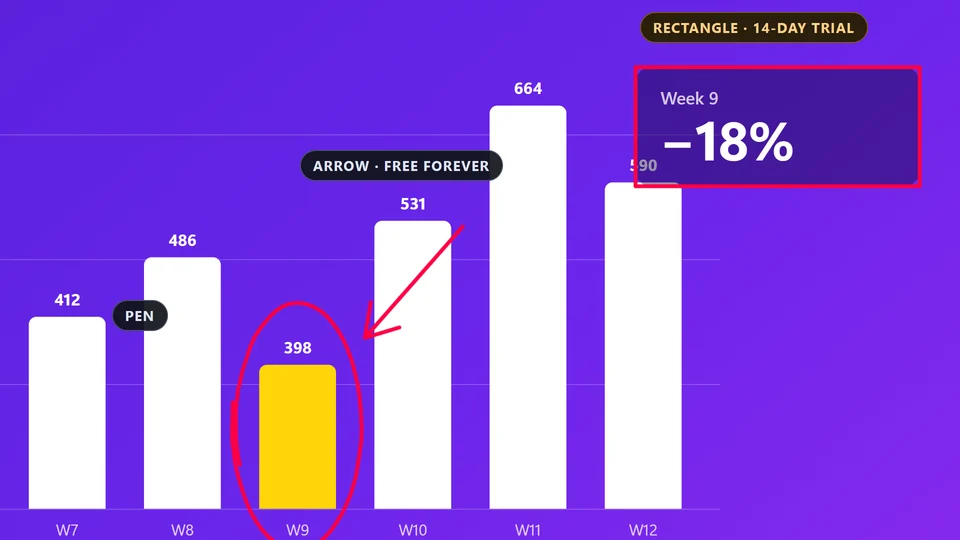
An Arrow points at the thing you mean. It is the default shape and the only one that stays free after the 14-day trial.
- Choose Pen first.The shape hotkey does nothing while Laser is the Draw mode. The Shape button on the toolbar and the Shape slice on the Wheel are the other ways in.
- Press Ctrl+Win+W, or open the “Shape” slice on the Wheel.The Shape slice offers Line, Rectangle, Circle and Arrow. Arrow is the default shape and the only one that is free forever.
- Drag from where the arrow starts to where it points.A preview follows the pointer. Let go and the arrow becomes ink, like any other mark. In Hold mode, keep the shape keys down while you drag.
- Scroll to change the width.Hold Shift and scroll over the Shape button. Shapes use the Pen width.
Add text to the screen#
Text puts a label where you click. Once you place it, it is ink like any other mark.
- Press Ctrl+Win+I, or choose “Text” in the Screen slice.The Text tool is now in your hand.
- Pick a size on the toolbar.“S”, “M” and “L” set the label to 20, 32 or 52 points. Scroll over the Text button to step the size anywhere from 12 to 160. “Box” puts the label on a rounded backing so it stays readable over any picture.
- Click where the label should start, then type.The label starts at the point you clicked.
- Press Enter, or click somewhere else, to place it.The label becomes ink, so Undo, the Eraser and screenshots treat it like any other mark.
- Right-click to put the Text tool away.Your placed labels stay.
Erase, undo, clear and hide#
| Action | What it does | How |
|---|---|---|
| Eraser | Removes whole marks as you drag over them, not single pixels. One drag is one undo step. | Ctrl+Win+Y, or Eraser in the Erase slice. Hold mode by default, like drawing. |
| Undo | Takes back the last mark, up to 32 marks. | Ctrl+Z while your ink has focus, or the toolbar’s Undo button. There is no redo. |
| Clear | Removes every mark on the screen. Undo brings them back. | Ctrl+Win+B, or Erase all in the Erase slice. |
| Hide ink | Takes the ink out of sight without deleting it. Press again to show it. | Hide ink in the Erase slice. It has no default key; add one in Settings. |
Choose Hold or Click drawing#
SHARA starts in Hold mode: you draw while you hold the draw keys. If holding keys is awkward, switch to Click mode.
- Open SHARA Settings from the tray icon and select the Tutor tab.The Annotation Tools card sits on this tab.
- Select the gear on the Annotation Tools card.It opens the Annotation display settings.
- Under Draw mode, choose Hold or Click.Hold draws only while you hold the keys. Click turns drawing on with one press of the hotkey, then you draw by holding the left mouse button.
- Press the hotkey again, or right-click, to put the tool away in Click mode.Your ink stays.
All the draw tools at a glance#
Every tool is on the Wheel (Ctrl+Space) and on the docked toolbar. The keys let you start one without either. How the Wheel and toolbar work.
| Tool | What it does | Start it | Free or trial |
|---|---|---|---|
| Laser | A trail that fades by itself after 2.6 seconds. For pointing, not for marking. | Ctrl+Win+X while Laser is the Draw mode (the default) | Free forever |
| Pen | Ink that stays on screen until you erase, undo or clear it. Width 1 to 12 px, default 4. | Ctrl+Win+X with Pen chosen as the Draw mode | Free forever |
| Arrow | Drag out an arrow from a point to the thing you mean. | Ctrl+Win+W, or the Shape slice | Free forever |
| Text | Click, type, press Enter. Small, Medium, Large or a Text box. | Ctrl+Win+I | Free forever |
| Eraser | Wipe single marks away by dragging over them. | Ctrl+Win+Y | Free forever |
| Undo, Clear, Hide ink | Take back the last mark, remove every mark, or hide the ink without deleting it. | Ctrl+Z, Ctrl+Win+B, Erase slice | Free forever |
| Highlighter | A wide, see-through stroke for marking a line of text. | The third Draw mode | Free for 14 days |
| Line, Rectangle, Circle | The other three shapes in the Shape slice. | Ctrl+Win+W, then pick the shape | Free for 14 days |
Little details worth knowing#
- Straight linesShift held while you draw with the Pen or Highlighter makes that run of the stroke straight, snapped to 45° steps (0°, 45°, 90° and so on) from where you pressed it; let go and you are freehand again. The Line shape snaps the same way. The Laser does not snap.
- Pen widthShift + scroll over the Draw button sets the width from 1 to 12 px (default 4). Shapes use the Pen width, and the Highlighter draws three times as wide as the number shown.
- Laser fadeThe Laser always fades after 2.6 seconds. Switch to Pen when the mark should stay.
- Undo depthCtrl+Z takes back up to the last 32 marks, and a Clear can be undone too.
- Text sizeScroll over the Text button to step the size anywhere from 12 to 160. S, M and L are 20, 32 and 52 points.
- Put a tool awayEsc, a right-click, the Pointer button or picking the same tool again. Your ink stays on screen.
- Ctrl+Z needs focusCtrl+Z undoes ink only while the ink has focus. Click another window, press another key or scroll and the ink dims; Ctrl+Z then goes to that app. Use the toolbar’s Undo button, or start the draw keys again to give the ink focus back.
- Shape and Eraser keysThese two hotkeys work only with Pen or Highlighter chosen, not with Laser.
- Hide, don’t deleteHide ink hides everything without deleting it. It shows again when you draw, erase or clear. It has no default key, so add one in Settings, and SHARA does not remember it hidden after a restart.
- Ink limitThe desktop keeps up to 512 marks. When it is full, the oldest marks make room for new ones.
Questions#
Are the SHARA drawing tools free?
Why is there a green ring around my pen?
Does the pen respond to pressure?
Will people in my meeting see what I draw?
How do I make the laser stay longer?
Can I change the hotkeys?
If it doesn’t work
- Ctrl+Win+X does nothing. Another app may hold the keys, or SHARA is off. Ctrl+Win+Z turns all of SHARA off and on. Rebind the draw hotkey.
- The Highlighter or a shape shows a padlock. Your 14-day trial ended. Laser, Pen and Arrow stay free. See what stays free.
- Viewers can’t see your ink. Share the screen, not a window.
More in Features: Keystroke pill · Whiteboard and colors · Screenshot.