
SHARA with OBS Studio
To record SHARA in OBS Studio, add a Display Capture source for the monitor you draw on. SHARA draws on its own layer above your apps, so Window Capture and Game Capture leave the halo and ink out. You can also hide the Wheel from the file, zoom into details, and capture a vertical 9:16 window. The halo, Pen and Laser are free.
Quick path
- Add a Display Capture of the monitor you draw on, hold Ctrl+Space, pick the Pen or Laser and draw: the halo and ink are in the preview and the file.
The halo, Pen and Laser are free. - Zoom into a detail with Ctrl+Win+G, or record a vertical 9:16 window with Broadcast: both are included free for 14 days.
- Set Recording to Hidden to keep the Wheel and toolbar out of the file, then record 10 seconds and play it back.
Record the SHARA overlay with a Display Capture#
SHARA is a Windows overlay, so there is nothing to install inside OBS. Add one source and record. The clip shows why the source type matters.
- Install and start SHARA.It runs in the background. Ctrl+Win+Z turns all of SHARA off and on, and Ctrl+Win+H turns the halo on and off.
- Add a Display Capture source in OBS Studio.Under Sources select +, then choose Display Capture. Name it and select OK.
- Pick the monitor you draw on.Use the Display list. OBS allows only one Display Capture per display, so add a reference to it if you need it in more than one scene.
- Leave Show Cursor ticked.It puts the Windows pointer in the video. SHARA draws its halo itself, so this box changes the pointer only.
- Hold Ctrl+Space, go to Draw, then Pen, and let go.Move into the Draw slice, then out to Pen. The hub reads Draw while you are on the slice (Ctrl+Alt+Space if a Chinese input language is installed). Drag across your screen: the line appears in the OBS preview.
- Press Start Recording.In the Controls dock. The halo, the line, the click flash and the pointer are in the file.
Display Capture, Window Capture or Game Capture#
Only a Display Capture records SHARA, because SHARA is drawn on the screen and not inside any app. Pick the source by what it records.
| OBS source | What OBS records | SHARA’s halo, ink and lens | Use it for |
|---|---|---|---|
| Display Capture | A whole monitor, as it looks on screen. | In the recording. The halo, ink, click flash, Magnifier and keystroke pill are drawn on the screen, so they come with it. | Tutorials, demos, a desktop and several apps. The one to use with SHARA. |
| Window Capture | OBS: “only the selected window will be shown, even if there are other windows in front of it”. | Not in the recording. SHARA is a separate layer in front of the window, not part of it. | One app window, when you want nothing else in the picture. |
| Game Capture | OBS: it “directly captures the DirectX or OpenGL game you are playing”. | Not in the recording. The source takes the game itself, not the screen. | The game alone. Add a Display Capture of the same monitor if you want SHARA in the shot, and test it first. |
| Window Capture of SHARA Broadcast Output | The 9:16 window SHARA builds. | See the Broadcast section. | Vertical video for Shorts, Reels and TikTok. |
See OBS’s Display Capture page for the monitor list and Show Cursor, and viewers can’t see ink for the same rule on a live call.
Keep the Wheel and toolbar out of the recording#
The Wheel and the docked toolbar show in a Display Capture by default, and a tutorial with the Wheel in it is hard to fix afterwards. Hidden removes both from the file. Your ink stays in.
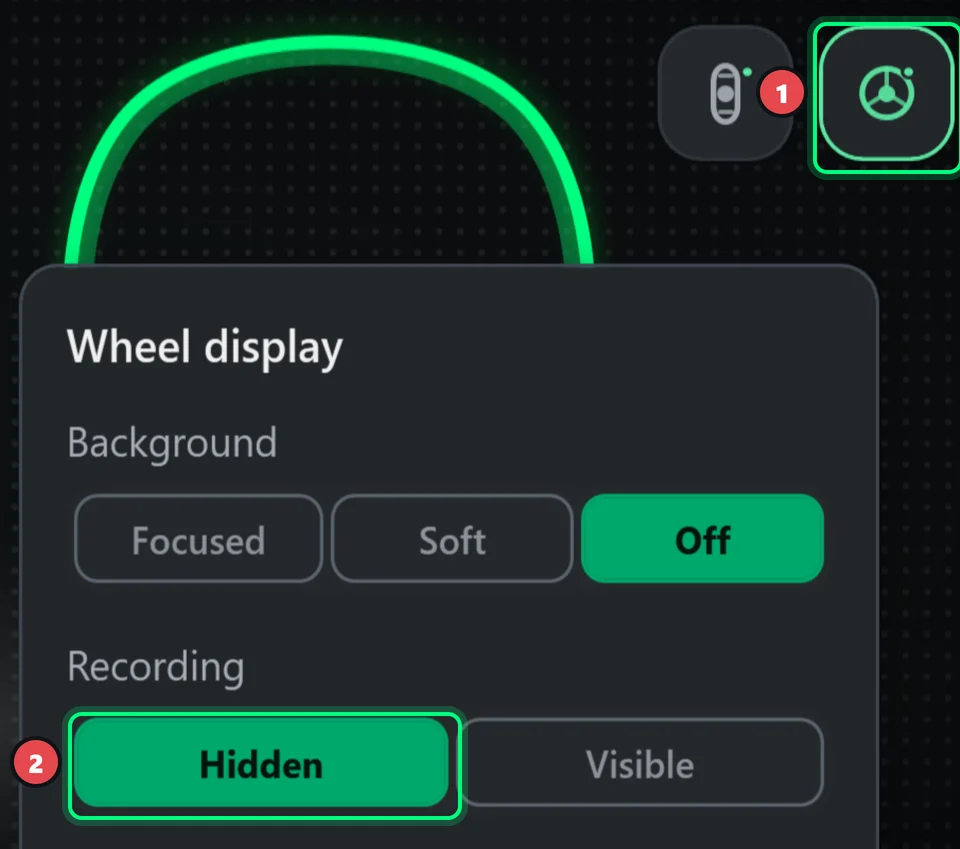
- Open SHARA Settings.Use the tray icon.
- Select the Tutor tab.It is in the Settings sidebar.
- Select the Wheel display button.The round steering-wheel icon at the top right of the tab (tooltip “Wheel display settings”).
- Set Recording to Hidden.You still see the Wheel and toolbar. The recording does not.
Hidden asks Windows to exclude these windows from capture. Availability depends on Windows and the recorder, and if Windows refuses, SHARA switches the setting back to Visible so it never claims protection it does not have. Check it in the test below. Settings, the tray menu and the upgrade sheets are not covered, so close them before you record.
Keep the halo on through a long recording#
SHARA hides the halo after 10 idle seconds. It pauses that for a PowerPoint slide show and duplicated displays, but it does not see OBS, so a tutorial where you stop to explain would lose the halo.
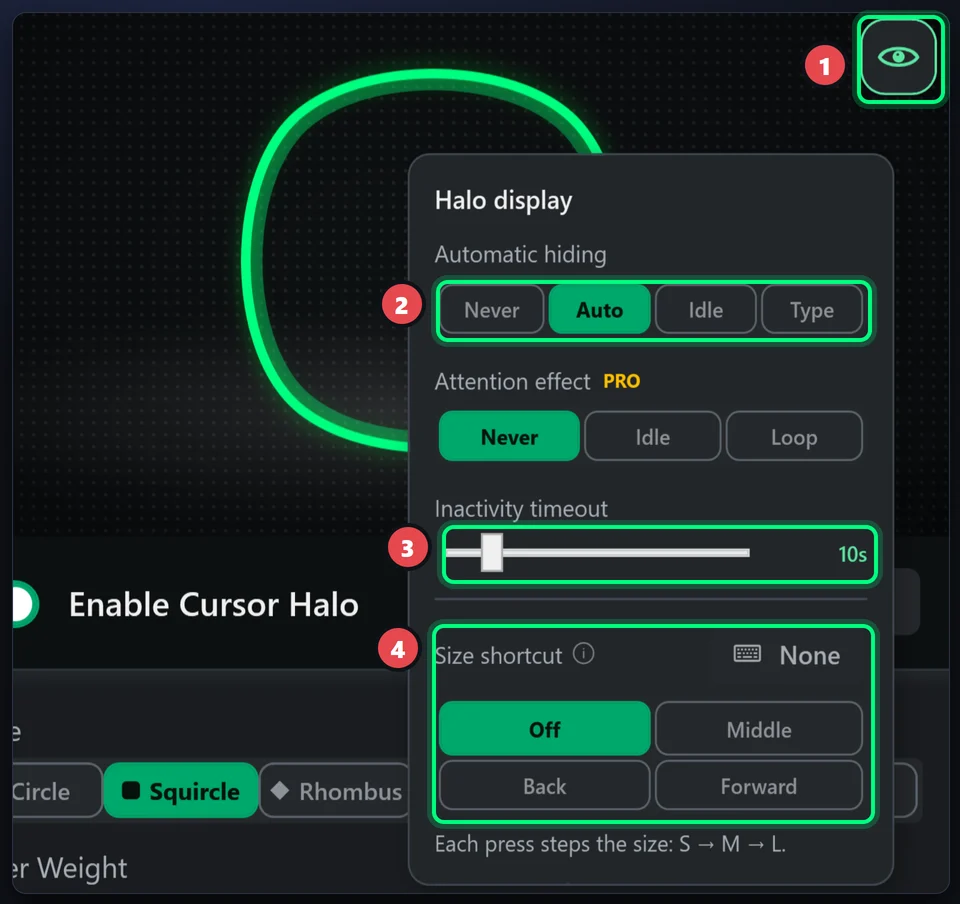
- Open SHARA Settings, then the Appearance tab.Use the tray icon.
- Select the eye button on the halo preview.Its tooltip reads “Halo display settings”.
- Set Automatic hiding to Never.The halo then stays where your pointer is until you turn it off with the halo hotkey.
- Switch Tips off if you do not want a pop-up in the file.Settings › System › General, “Tips” (“Hints and reminders SHARA shows by itself”).
Zoom into a detail while you record#
A small value, a menu, a line of code: what you can read on your monitor is often too small in a 1080p video. The Magnifier enlarges it live, and it lands in the recording because it is drawn on the screen. The Magnifier is included free for 14 days, then part of Pro; the halo, Pen and Laser stay free.
- Start your recording and point at the detail.Put the pointer on the small thing viewers will miss: a value, a menu, a line of code.
- Hold Ctrl+Win+G.A lens opens at the pointer at 2×, in the shape and size of your halo.
- Keep holding and scroll up.Each notch adds 0.25×, up to 10×. Scroll down to come back.
- Let go to close the lens.Holding is the default for the Lens and Spotlight modes.
Two other modes work the same way: Spotlight dims the screen except around your halo, and Live Zoom zooms the whole screen with a plain scroll (it toggles with the same hotkey). The Magnifier page has all four.
Record a vertical 9:16 window with Broadcast#
For Shorts, Reels and TikTok, SHARA’s Broadcast mode builds a portrait window that follows your pointer. You capture that window in OBS instead of the whole display. Broadcast is part of the Magnifier, so it is included free for 14 days (free vs Pro).
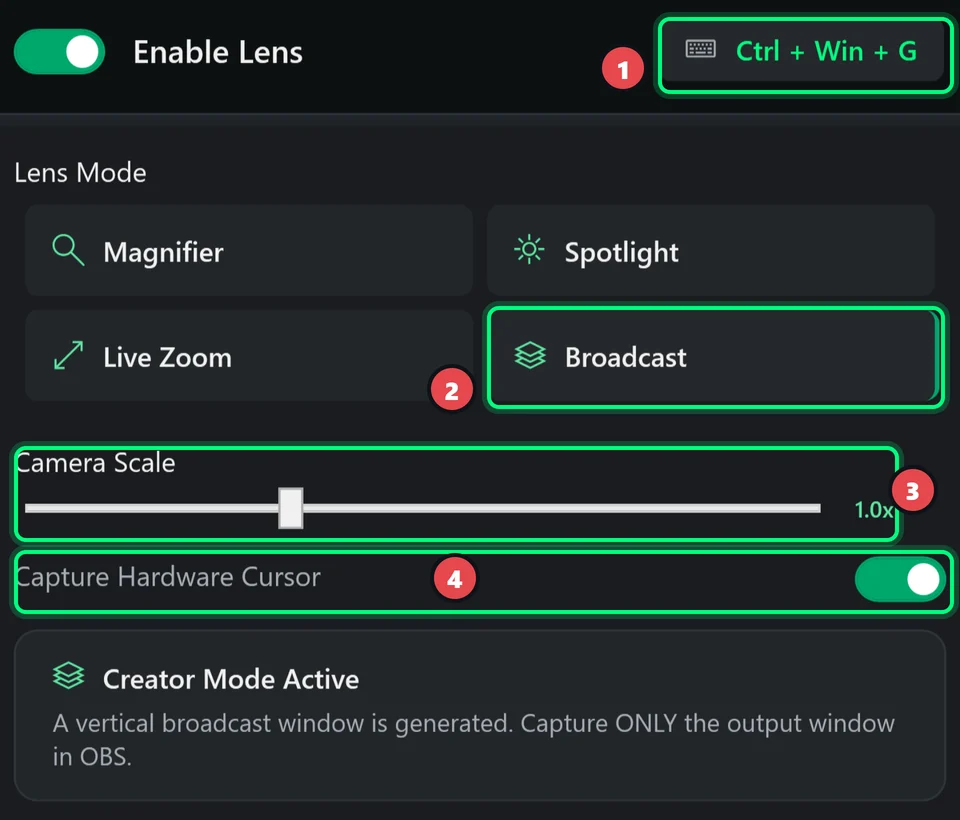
- Open SHARA Settings, then the Magnifier tab.Use the tray icon.
- Choose the Broadcast card.It sits under Lens Mode, beside Magnifier, Spotlight and Live Zoom.
- Press Ctrl+Win+G to switch it on.Broadcast always toggles: press again to turn it off. A window titled SHARA Broadcast Output appears in the bottom-right corner of the monitor your pointer is on, behind your other windows. A glowing outline on that monitor shows the area it covers, and that outline never goes into a capture.
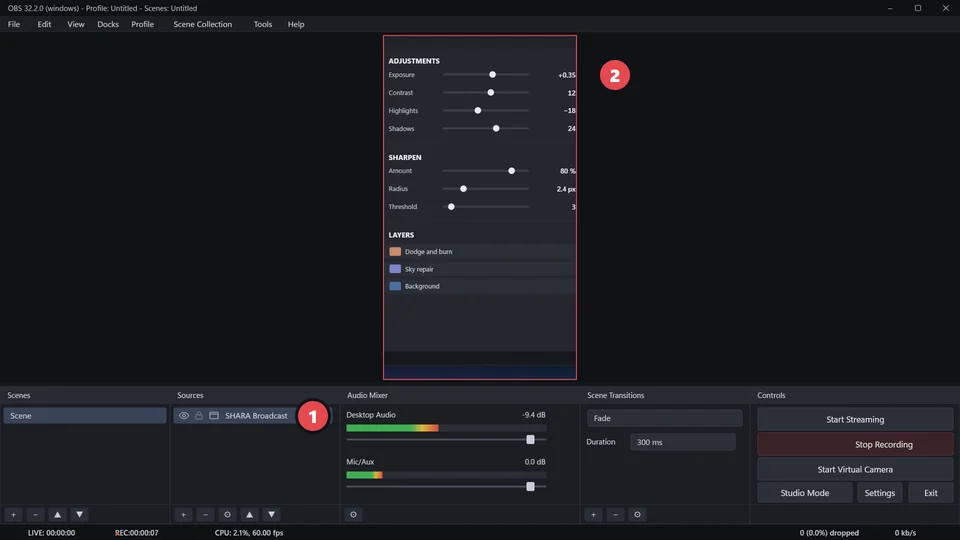
- Add a Window Capture source in OBS.Under Sources select +, then choose Window Capture.
- Pick the Broadcast window.Choose the entry for SHARA Broadcast Output in the Window list and select OK. Capture only this window, not the display.
- Make the file vertical, if it should be.OBS Settings › Video: set Base (Canvas) Resolution and Output (Scaled) Resolution to a 9:16 size such as 1080 × 1920, then fit the source to the canvas (OBS Studio overview).
- Move around the screen.The window follows your pointer. It stays calm for small moves and follows when the pointer nears its edge.
- Window size. SHARA picks the tallest of 1920, 1280, 960 or 640 px that fits the monitor, at 9:16. A 1080p monitor gives 540 × 960, a 1440p monitor 720 × 1280 and a 4K monitor 1080 × 1920.
- Camera Scale. The slider (0.5× to 2.0×) changes how much of the screen the window covers without resizing the OBS source.
- Capture Hardware Cursor. A toggle in the same panel draws your real mouse pointer into the window. If you see two pointers, turn off one of the two cursor options.
- The monitor. The window works on the monitor your pointer is on, and moves with you when you change monitors.
SHARA copies the screen into this window with a plain screen copy. In our test on Windows 11, a transparent window of the kind SHARA draws with is included in that kind of copy, and a window set to hide from capture is left out of it. So the halo and ink should be in the Broadcast window and a hidden Wheel should not. We have not run OBS against it yet, so record 10 seconds first. If the halo or ink are missing, record a Display Capture instead and crop to 9:16 in your editor.
Check it with a 10-second test recording#
- Record a short clip.Select Start Recording, click a few buttons, draw a Pen line and hold Ctrl+Space to open the Wheel.
- Stop and play it back.Select Stop Recording, then open the file.
- Check the result.The halo follows the pointer, the click flashes, the ink is there, and the Wheel and toolbar are not (if you set Recording to Hidden).
| What you see | Likely cause | Fix |
|---|---|---|
| The halo and ink are missing, but your apps show | The source is Window Capture or Game Capture. | Delete it and add a Display Capture source. |
| Nothing of SHARA shows, not even on your screen | SHARA is off, or the halo is hidden. | Press Ctrl+Win+Z to turn SHARA on, and Ctrl+Win+H for the halo. |
| SHARA shows on your screen but not in the preview | The Display Capture is on another monitor. | Open the source, then pick the monitor you draw on under Display. |
| OBS shows a picture inside a picture | OBS is on the monitor that it records. | Move OBS to another monitor, or record a different one. |
| The halo vanished while you talked | OBS is not detected as a presentation, so the halo hides after 10 idle seconds. | Set Automatic hiding to Never (see Keep the halo on). |
| The Wheel or toolbar is in the video | Recording is set to Visible, or Windows or the recorder refused the request. | Set it to Hidden (steps above) and run the test again. Hide from capture has the details. |
| A SHARA window or menu is in the video | Settings, the tray menu and the upgrade sheets are not hidden by Recording. | Close them before you press Start Recording. |
| The mouse pointer is missing | Show Cursor is off in the source. | Open the source and tick Show Cursor. |
| No “SHARA Broadcast Output” in the Window list | Broadcast is not switched on, so the window does not exist. | Press Ctrl+Win+G with Broadcast selected, then reopen the source properties. |
| Two pointers in the Broadcast window | Capture Hardware Cursor in SHARA and Capture Cursor in OBS are both on. | Turn one of the two off. |
SHARA also draws while you record: see draw tools, the keystroke pill and SHARA for screen recording. Live coding on stream? SHARA for live coding streams. New to recording? The tutorial video guide walks through the whole workflow.
Little details worth knowing#
- The halo is SHARA’s, not Windows’Show Cursor in OBS changes the Windows pointer only. The halo is a SHARA window that follows the pointer.
- Hold or toggleCtrl+Win+G is held for Lens and Spotlight and toggles for Live Zoom and Broadcast, whatever the Hold/Toggle pill says.
- Scrolling keeps the zoomA scroll with the lens hotkey held changes the saved Zoom Factor, so the next lens opens at that size.
- The lens is as big as the haloThere is no lens size setting. Change the halo size to change the lens (its size shortcut steps Small, Medium, Large).
- Live Zoom needs no modifierWith Live Zoom on, a plain scroll zooms the whole screen from 1× up to 8× by default, and the view follows the pointer.
- Camera ScaleBroadcast covers 540 × 960 screen pixels on a 1080p monitor at 1.0×. 2.0× covers twice as much; 0.5× half.
- The Ghost HUD stays outThe glowing outline that marks the Broadcast area asks Windows to exclude it from capture, whatever the Recording setting says.
- OBS can take SHARA’s keysOBS binds global hotkeys under Settings › Hotkeys. If a SHARA chord does nothing, check there and change SHARA’s hotkey.
Questions#
Does OBS record the SHARA halo and my drawing?
Why is my SHARA ink missing in Window Capture or Game Capture?
Can I keep the Wheel and toolbar out of the recording?
Does the SHARA halo disappear while I record?
Can I zoom in on part of the screen while recording?
Is the 9:16 Broadcast window free?
Does SHARA record my screen?
Is SHARA free to use with OBS?
None of this worked. What now?
If it doesn’t work
For a live call rather than a recording, set up the call app with its page: Teams, Zoom or Discord. For a reference on the whole problem, see viewers can’t see ink.
More in Works with: SHARA with Teams · SHARA with Discord · SHARA with Google Meet.