
Use the SHARA whiteboard and color sets
SHARA can lay a clean white, black or grid board over your screen and switch your ink between color sets with one key. Draw on the board with the same tools, then press Esc to go back to your app. The 14-day trial includes both; the free tier keeps one ink color per tool.
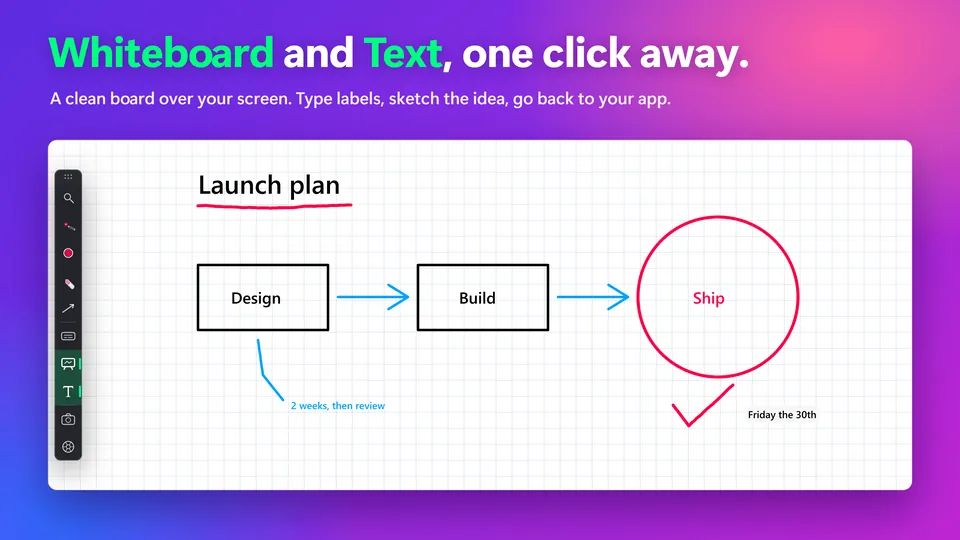
Open the whiteboard#
The board is a clean sheet over one monitor, with its own ink. It is for the moment you want to explain something without a slide behind it.
- Press Ctrl+Win+K.The board opens over the monitor your pointer is on. Press it again to close it. You can also choose “Board” in the Wheel’s Screen slice (Ctrl+Space) or the “Board” button on the docked toolbar. How the Wheel and toolbar work.
- Draw.SHARA takes out the Pen for you unless a tool is already in your hand. If your Draw mode is Laser, it uses the Pen instead, because a laser trail fades. Every draw tool works on the board.
- Press Ctrl+Z to take back a mark.Undo steps back through the marks you made, as it does on the desktop.
- Press Esc to close the board.Your app underneath is exactly where you left it.
Free to install. Every board and color tool is free for your first 14 days.
Download free fromView onMicrosoft StoreFree forever: cursor halo, click animation, Pen, Laser, Arrow, Text, Eraser, Screenshot and the Ctrl+Space Wheel. Every Pro tool is free for your first 14 days, with no card and no account. After that, Pro is a one-time purchase ($19.99 in the US). See pricing and the 14-day trial →
Choose White, Black or Grid#
The board opens with the background you used last. Change it in Settings or on the Wheel.
| Background | What you get |
|---|---|
| White | A plain white board. |
| Black | A plain black board. |
| Grid | A white board with light grid lines, for diagrams and tables. |
- Open SHARA Settings from the tray icon and select the Tutor tab.Scroll to the on-screen Actions card at the bottom of the tab.
- Choose the Whiteboard page on the Actions card.It has one setting: the background.
- Click the background control to step through White, Black and Grid.Its tooltip says what the next click gives. A board that is open repaints straight away.
- Or scroll over the “Board” slice on the Wheel.Each notch steps White, Black, Grid. A closed board stays closed, so a scroll never throws a full-screen board over your work.
- Change the key if you like.The Whiteboard hotkey recorder on the same card starts at Ctrl+Win+K. Change hotkeys has the details.
Ink that always shows#
If your current ink color would all but vanish on the background, SHARA swaps to the nearest color in your sets that shows, for example from black to the next color of the Whiteboard set on a black board. When you close the board your own color comes back. A color you pick yourself while the board is up stays.
Edit your color sets#
A color set is a row of up to four ink colors you can switch between without opening a menu. SHARA starts with two.
| Built-in set | Colors | Made for |
|---|---|---|
| Whiteboard | #000000 black, #FF0044 red, #00A3FF blue | Dark ink for the white and grid boards, and for light slides. |
| Blackboard | #FFD60A yellow, #00E5FF cyan, #FFFFFF white | Light ink for the black board and for dark apps. |
- Open SHARA Settings from the tray icon and select the Tutor tab.The Annotation Tools card holds the Ink card.
- Select the color chip on the Ink card.Its tooltip reads “Color sets”. The Color sets panel opens.
- Pick a preset, or add one.Click a set to make it active. Each set has a name of up to 14 characters, and you can rename or remove it. You can keep up to 4 sets.
- Click a swatch to change its color.A set holds up to 4 colors. The tool glyph next to your pointer follows the color in use.
Switch colors while you draw#
| Keys | What it does | Good to know |
|---|---|---|
| Alt+1 Alt+2 Alt+3 Alt+4 | Pick the first to fourth color of the active set. | Works while a draw tool is in use, even in the middle of a stroke. Outside drawing the key goes to your app as usual. |
| Ctrl+Win+R | Switch to the next color set, for example Whiteboard to Blackboard. | Wraps around after the last set. |
| Scroll over the Color slice | On the Wheel, step through the colors of the active set. | Hold Ctrl+Space to open the Wheel. |
What the free tier keeps#
After the 14-day trial SHARA goes back to one ink color per tool. On the Ink card the color chip then reads “Edit color” and opens the color picker directly. The board and the Color slice show a padlock, and your settings are kept in case you upgrade. Drawing itself never expires: Laser, Pen, Arrow, Text and the Eraser stay free.
Questions#
Is the SHARA whiteboard free?
Which monitor does the board open on?
Why did my ink color change when I opened the board?
Will people in my meeting see the board?
Can I change the hotkeys?
If it doesn’t work
- The Board slice or the Alt+1 to 4 keys show a padlock. Your 14-day trial ended. See what stays free.
- Alt+1 does nothing. The color keys only act while a draw tool is in use. Hold Ctrl+Win+X or arm a tool first, and check that another app does not hold the same keys. Rebind the color keys.
- Ctrl+Win+K does nothing. Ctrl+Win+Z turns all of SHARA off and on, and the key may be taken by another app.
- Viewers can’t see your board. Share the screen, not a window.
More in Features: Cursor halo · Draw tools · Magnifier.