
Take a screenshot with SHARA
SHARA takes a screenshot of the monitor you are on, with your ink in the picture and its own toolbar left out. It copies the image, saves a PNG to Pictures\SHARA, or does both. This page shows how to take one, change where it goes and add a hotkey.
Quick path
- Click the camera button on the toolbar (second from the bottom), or right-click the SHARA tray icon and choose Screenshot.
- Paste with Ctrl+V, or open the PNG in Pictures\SHARA. By default you get both.
- Want a different place, or a key? Open Settings, the System tab, and the Screenshot card.
Take a screenshot#
Screenshot is a toolbar button, a tray menu item and an optional hotkey. It is not on the Wheel. The picture below shows where the button is and what ends up in the file. How the Wheel and toolbar work.
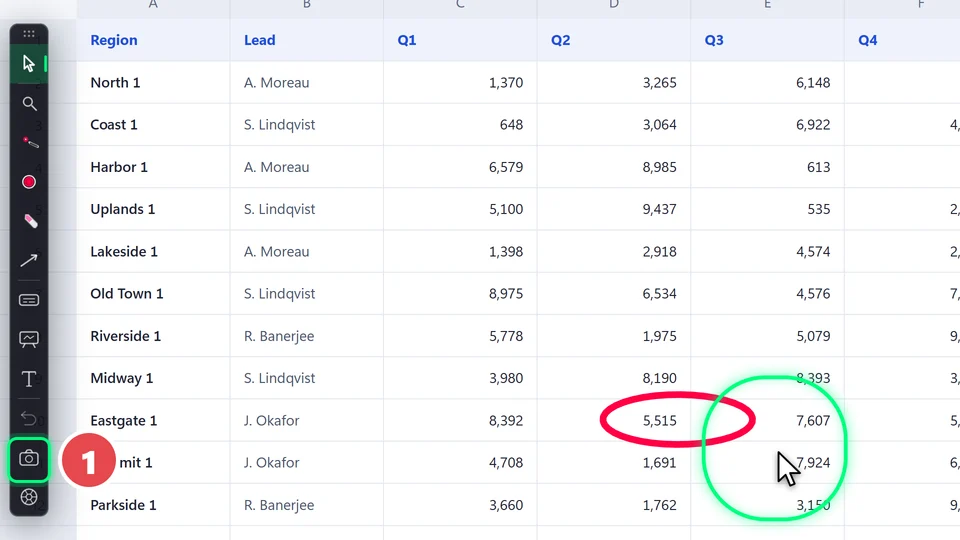 On your screen
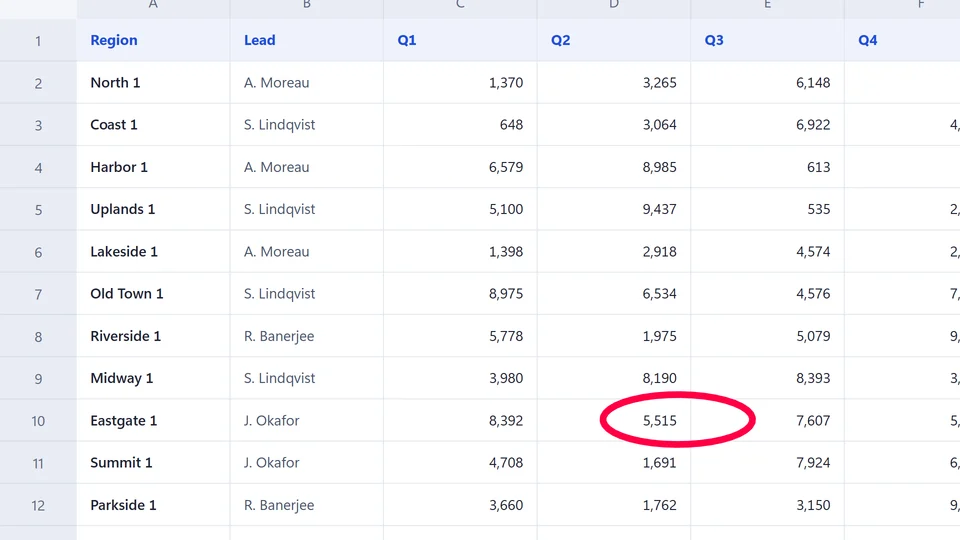 In the screenshot
| Way to start | How | Key |
|---|---|---|
| Toolbar | Click the camera button on the docked toolbar (1 above). It is the second cell from the bottom, just above the Wheel button. | None needed |
| Tray icon | Right-click the SHARA icon in the system tray and choose Screenshot. SHARA waits a moment for the menu to fade out first, so it is not in the picture. This is the way when the toolbar is hidden, or when you work with the Wheel instead of the toolbar. | None needed |
| Hotkey | Press the chord you record in Settings (see Add a hotkey). | None until you record one |
- Put on screen what you want in the picture.Draw with SHARA, open the page, or leave the Whiteboard up. Anything SHARA drew is part of the shot.
- Start the screenshot.Click the camera button, choose Screenshot from the tray menu, or use your hotkey. If the Wheel is open, close it first: a shot is skipped while the Wheel is open.
- Read the hint that appears.It says “Screenshot copied”, “Screenshot saved to Pictures\SHARA” or “Screenshot copied and saved to Pictures\SHARA”, and goes away after about two seconds.
- Paste with Ctrl+V, or open the file.Paste into any app that takes pictures. The file is in Pictures\SHARA unless you picked another folder.
Free to install. Screenshot, Laser, Pen, Arrow and the Eraser never expire.
Download free fromView onMicrosoft StoreFree forever: cursor halo, click animation, Pen, Laser, Arrow, Text, Eraser, Screenshot and the Ctrl+Space Wheel. Every Pro tool is free for your first 14 days, with no card and no account. After that, Pro is a one-time purchase ($19.99 in the US). See pricing and the 14-day trial →
Choose where the picture goes#
SHARA starts on Both: the picture is copied and saved.
| Setting | What happens | Good for |
|---|---|---|
| Copy | The picture goes to the clipboard only. No file is made. | A quick paste into chat or a doc. |
| Both (default) | The picture is copied and also saved as a PNG. | Pasting now and keeping a copy. |
| Save | A PNG is saved and the clipboard is left alone. | Keeping what you copied earlier on the clipboard. |
- Open SHARA Settings and select the System tab.Click the SHARA tray icon: Settings opens on the Appearance tab, so choose System. The Screenshot card sits between General and Backup & reset.
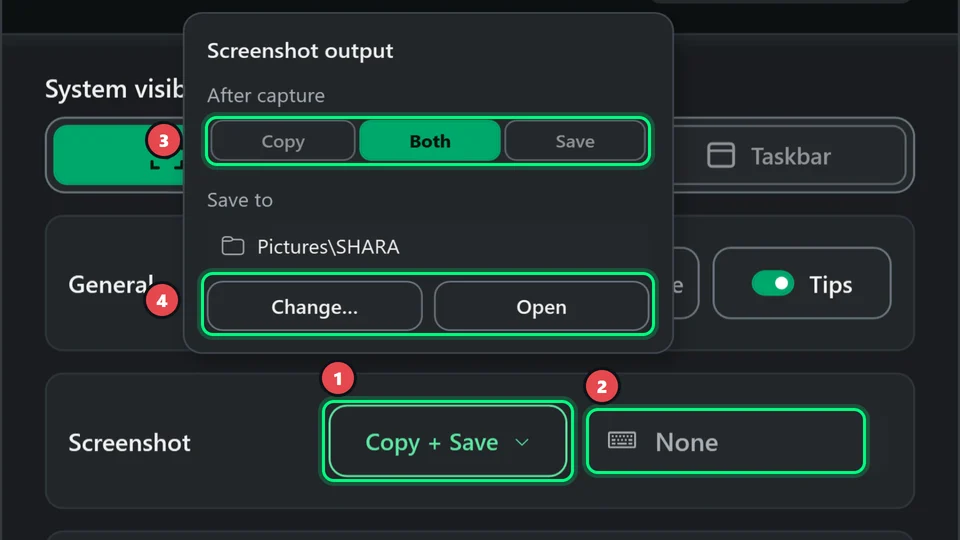
- Select the output button on the Screenshot card (1).It reads “Copy + Save” until you change it, and opens the “Screenshot output” panel.
- Under “After capture”, choose Copy, Both or Save (3).The choice applies to the next screenshot.
- To change the folder, select Change… under “Save to” (4).“Open” shows the folder in Explorer, and it makes the folder first if it does not exist yet. “Use default” appears once you have chosen another folder and takes you back to Pictures\SHARA. The folder row looks dimmed while the output is Copy, because nothing is saved then.
What is in the picture#
SHARA copies the whole monitor under your pointer as it is composed right now. It hides its own controls first, so the picture shows your content and your ink, not the tools.
| In the picture | Left out |
|---|---|
| Your ink: Laser, Pen, Arrow, shapes and text labels | The docked toolbar |
| A text label you were still typing, without its caret | The cursor halo and the click ripple |
| The Whiteboard, when it is open | The tool cursor that follows your pointer, and the Windows pointer arrow |
| Every app and window on that monitor, and the magnifier lens | The hint pill at your pointer, and other monitors: only one is captured |
With the Whiteboard open, the screenshot is of the monitor the board is on, so it works as an export of the board.
Screenshots on an HDR monitor#
When Windows runs a monitor in HDR mode, a plain copy of the screen comes out washed out. SHARA reads such a monitor the way Windows composes it and scales it back to standard brightness, so ordinary content keeps its own colours. Highlights brighter than standard white turn white in the PNG. If that step fails or takes too long, SHARA takes the standard copy instead. A monitor in SDR mode needs none of this.
Add a screenshot hotkey#
There is no default key, because a new global shortcut could take one that another app relies on. Record one so a screenshot never needs the mouse.
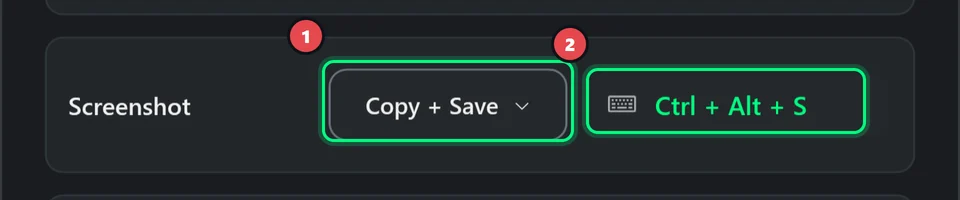
- Open SHARA Settings and select the System tab.Look at the Screenshot card.
- Click the hotkey box on the right of the card (2).It says None until you record a chord. It changes to “Press keys…”.
- Press the keys you want.A chord with Ctrl, Alt or Win works. Without one of those, only the keys F1 to F11, F13 to F24, Insert, Delete, Home, End, Page Up, Page Down, Print Screen, Pause and the media keys are accepted on their own. Esc cancels. If another SHARA hotkey already has the chord, an amber icon appears in the box and its tooltip names the conflict.
- Try it.The tray menu now shows the chord next to “Screenshot”. To remove it, hover over the box and click the small cross (“Clear Hotkey”).
Little details worth knowing#
- File namesA shot is named SHARA 2026-11-10 14.30.05.png after the time it was taken. If that name is already taken, “(2)”, “(3)” and so on are added, so an earlier shot is never replaced.
- Folder fallbackIf the folder you chose is gone (an unplugged drive, a deleted folder), the picture goes to Pictures\SHARA instead of being lost, and the hint names that folder.
- One monitorThe monitor under your pointer is captured. When you click the tray item, that is the monitor the tray is on. With the Whiteboard open, it is the board’s monitor, so a shot works as an export of the board.
- Skipped, silentlyA shot is skipped while the Wheel is open or while the previous one is still being taken. No hint appears.
- The WheelScreenshot is not on the Wheel. It is a toolbar button, a tray item and an optional hotkey.
- SHARA offThe hotkey works only while SHARA is on. Ctrl+Win+Z turns SHARA off and on.
- Always freeScreenshot is not one of the Pro tools, and neither is its hotkey. It keeps working after the 14-day trial ends.
Questions#
Is the SHARA screenshot free?
Where does SHARA save screenshots?
Can I screenshot just part of the screen?
Does the screenshot include my drawing?
Is the mouse pointer in the screenshot?
Does SHARA record video?
If it doesn’t work#
If it doesn’t work
- Nothing happens, and no hint appears. The Wheel is open, or the last shot is still being taken. Close the Wheel and try again. A hotkey also needs SHARA switched on: Ctrl+Win+Z turns it back on.
- “Screenshot could not be taken”. SHARA could not read the screen or write the picture. Try again, then choose Copy as the output to rule out the folder.
- The hotkey does nothing. The box may still say None, or another app or another SHARA hotkey holds the chord. Rebind the hotkey.
- There is no camera button. The toolbar is hidden or you are using the Wheel. Use the tray menu or a hotkey, or switch back with Ctrl+Win+A. How the Wheel and toolbar work.
- The toolbar shows in a recording. That is a screen recorder, not the screenshot. Hide SHARA from capture.
- Nothing in Pictures\SHARA. Check the output: Copy saves no file. Select Open under “Save to” to see which folder is in use.
More in Features: Cursor halo · Draw tools · Magnifier · Keystroke pill.