
Open the Wheel and the toolbar
The Wheel and the toolbar hold the same SHARA tools, and both are free forever. Hold Ctrl+Space to open the Wheel at your cursor, move toward a slice and let go to pick it. Or keep the docked toolbar on screen and press Ctrl+Win+A to swap between the two.
Quick path
- Hold Ctrl+Space, move toward a slice (out to the ring for an option) and let go.
- Tap Ctrl+Space instead to keep the Wheel open, then click. Esc / right-click closes it.
- Press Ctrl+Win+A to swap between the docked toolbar and the Wheel.
Hold Ctrl+Space to pick a tool#
The Wheel is a ring of six slices that opens under your pointer. The slices are tools; the ring beyond them holds each tool’s options.
- Hold Ctrl+Space.The Wheel opens centred on your pointer. With a Chinese input language installed, hold Ctrl+Alt+Space instead.
- Move toward a slice.The inner ring picks the tool. The ring beyond it picks an option of that tool, such as Pen in the Draw slice. You can go past the Wheel’s edge: past the ring only the direction counts. The hub in the middle names the slice under your pointer.
- Let go of the keys.SHARA picks what you pointed at and closes the Wheel. Let go over the middle to pick nothing.
- Press Esc or right-click to close the Wheel without picking.Nothing changes.
Free to install. The Wheel and toolbar never expire.
Download free fromView onMicrosoft StoreFree forever: cursor halo, click animation, Pen, Laser, Arrow, Text, Eraser, Screenshot and the Ctrl+Space Wheel. Every Pro tool is free for your first 14 days, with no card and no account. After that, Pro is a one-time purchase ($19.99 in the US). See pricing and the 14-day trial →
Tap Ctrl+Space to keep it open#
If holding keys is awkward, tap them instead. A tap leaves the Wheel open so you can click.
- Tap Ctrl+Space quickly and keep the pointer in the middle.A press shorter than a quarter of a second, released over the hub, pins the Wheel open.
- Click a slice, or an option on the outer ring.The Wheel closes and the tool is in your hand.
- Tap Ctrl+Space again, press Esc or right-click to close a pinned Wheel.Nothing is picked.
Pick faster: flick, cancel, one hand#
Once the six slices are familiar, you can pick without aiming. The Wheel needs your direction, not your precision.
- Flick: hold, push toward a slice and let go.No need to look or stop on the slice. Go as far as you like past the ring: only the direction counts, so the option band in that direction is picked.
- Cancel: slide back to the middle and let go.The hub is the only place where letting go picks nothing. Esc and a right-click cancel too.
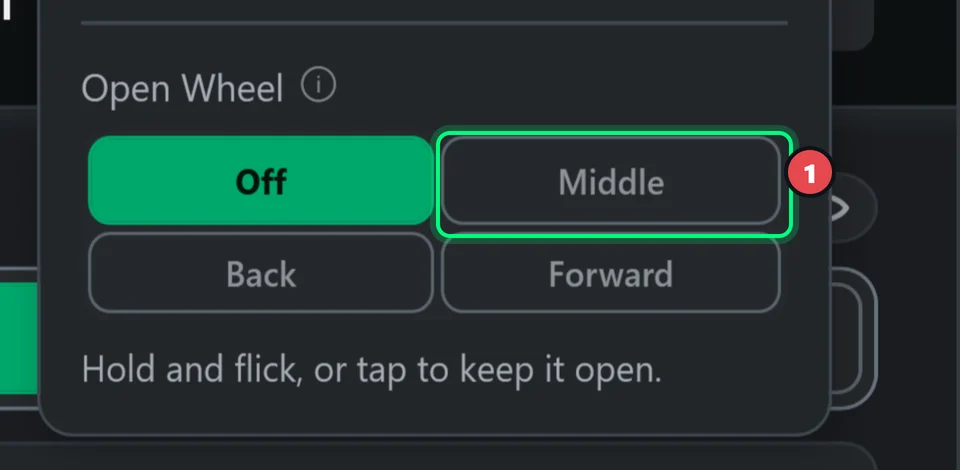
- One hand on the mouse: give the Wheel a mouse button (1).In Settings, on the Tutor tab, open Wheel display and set Open Wheel to Middle. Then hold the middle button, flick toward a slice and release. Back and Forward work the same way.
- With the Wheel open, drag with the left button and release.While you hold the keys, or on a pinned Wheel, the left button picks what is under the pointer.
The six slices#
Clockwise from the top. Each tool’s page has the details: draw tools, magnifier, keystroke pill and whiteboard and colors.
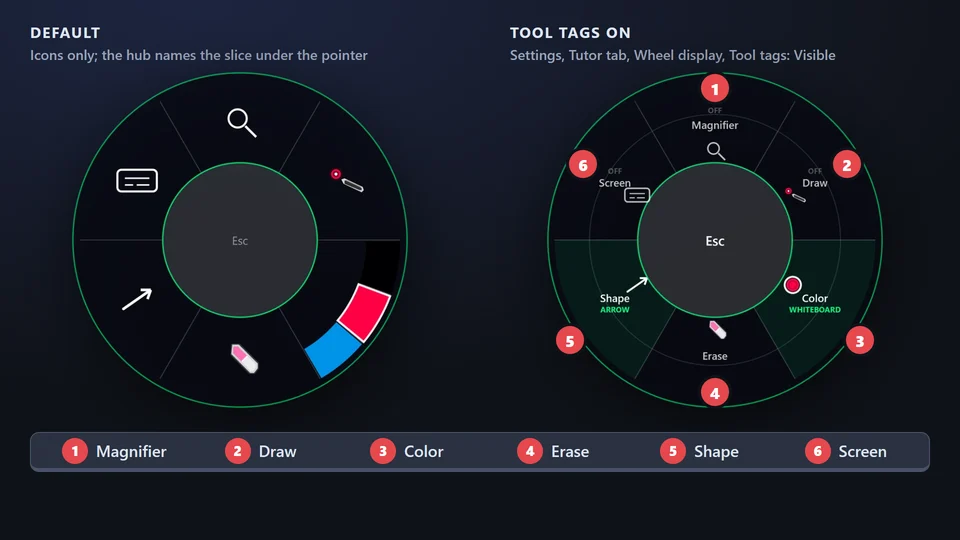
| Slice | Options | Free or trial |
|---|---|---|
| 1. Magnifier | Lens, Spotlight, Live Zoom, Broadcast (the Wheel shortens them to Lens, Spot, Zoom, Cast) | Free for 14 days, then locked |
| 2. Draw | Laser, Pen, Highlighter | Laser and Pen free forever. Highlighter free for 14 days |
| 3. Color | Your colour set, up to four colours | Free for 14 days, then locked |
| 4. Erase | Erase all, Eraser, Hide ink | Free forever |
| 5. Shape | Line, Rectangle, Circle, Arrow | Arrow free forever. The other three free for 14 days |
| 6. Screen | Keys, Board, Text | Text free forever. Keys and Board free for 14 days |
Use the keyboard or scroll#
- Press Left Arrow or Right Arrow to move between slices.The first press selects a slice; the Wheel then follows the keys until you move the mouse.
- Press Up Arrow or Down Arrow to step through the slice’s options.The outer ring lights up one option at a time.
- Press Enter or Space to pick.It arms the lit option, or the slice itself.
- Scroll the mouse wheel over a slice to change its option.In Draw it steps through Laser, Pen and Highlighter, in Magnifier through the four modes, in Color through your colours, in Shape through the shapes. Erase has no scroll option. Scrolling never picks the tool by itself.
- Hold Shift while you scroll to change the value instead.In Draw that is the stroke width, in Magnifier the zoom or dimming, in Shape the pen width, in Color the colour set. In Screen a plain scroll already changes the Text size, the Keys size or the Board type.
Switch to the docked toolbar#
SHARA starts with the toolbar: a slim strip docked on the left edge of your screen, halfway down. It holds the same tools as the Wheel, plus Pointer, Board, Text, Undo and Shot.
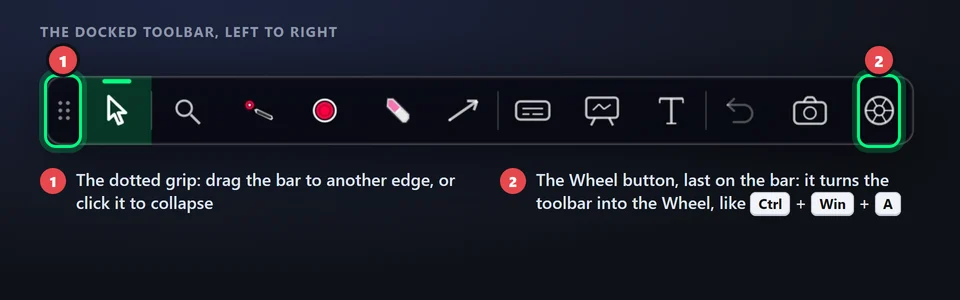
- Press Ctrl+Win+A to turn the toolbar into the Wheel.The toolbar leaves the screen and the Wheel is your surface. The Wheel button at the end of the toolbar does the same.
- Press Ctrl+Win+A again to bring the toolbar back.You can also click SHARA Toolbar in the tray menu.
- Drag the toolbar by its grip toward any screen edge and let go.It docks to the left, top, right or bottom edge of the monitor it is on.
- Click the dotted grip to collapse the toolbar.Click the grip again to expand it.
Ctrl+Space opens the Wheel even while the toolbar is showing.
Turn the Wheel on or change its keys#
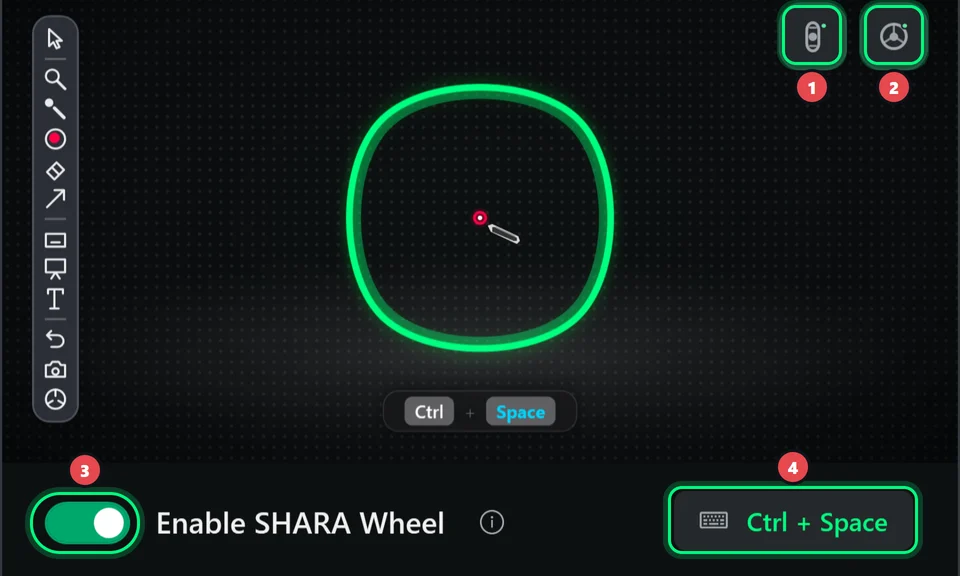
- Open SHARA Settings from the tray icon and select the Tutor tab.The Wheel switch sits under the preview at the top of the tab.
- Check that Enable SHARA Wheel (3) is on.The Wheel does not open while it is off. The tray menu item SHARA Wheel is the same switch.
- Click the box beside it (4) and press the keys you want.The default is Ctrl+Space. Change hotkeys explains conflicts.
- Select the round icon at the top right (2) to open Wheel displayIt holds Background (Focused, Soft or Off), Recording (Hidden or Visible), Tool tags (Hidden or Visible) and Open Wheel, a mouse button (Middle, Back or Forward) that works like the keys.
- Select the icon beside it (1) to open Toolbar settingsIt holds the toolbar switch, the Toolbar ⇄ Wheel hotkey and its own mouse button.
Little details worth knowing#
- Near a screen edgeThe Wheel slides inward so it stays fully on screen. Its middle is then not under your pointer, so the pointer may already sit over a slice when it opens.
- No outer edgeThe Wheel has no edge to stay inside. Beyond the ring, only the direction of your pointer counts, so you can flick well past it and let go. Only the middle, the hub, picks nothing.
- A flick on Erase allLetting go less than a quarter of a second after reaching Erase all arms the Eraser instead, so a flick cannot wipe your ink.
- Scroll can be undoneA scroll changes the option or value at once. Esc or a right-click closes the Wheel and puts it back; letting go of the keys keeps it.
- Wheel sizeThe Wheel grows with your halo size, up to a limit.
- Mouse buttonThe Open Wheel mouse button in Settings behaves like the keys: hold and release, or tap to keep it open.
- Touch and penWith a pen or touch screen connected, a tap on the open Wheel lands on it. A touchpad does not count.
- Locked slicesAfter the 14-day trial a locked slice or option shows a padlock. Picking it does nothing but tell you it is part of SHARA Pro.
Questions#
Do I have to stay inside the Wheel?
Is the SHARA Wheel free?
How do I open the Wheel without holding keys?
Can I change Ctrl+Space?
Will viewers see the Wheel in a recording?
Where did my toolbar go?
If it doesn’t work#
If it doesn’t work
- Ctrl+Space does nothing. Check that Enable SHARA Wheel is on (Settings, Tutor tab, or the tray item SHARA Wheel) and that SHARA itself is on: Ctrl+Win+Z turns all of it off and on. Another app may hold the keys; rebind the Wheel hotkey. Just installed? Check your first launch.
- Ctrl+Win+A shows “Turn on the SHARA Wheel and give it a shortcut before switching to it”. The Wheel is off, or has no hotkey and no mouse button. Fix it in Settings, then switch again.
- Ctrl+Win+A does nothing and the toolbar is not on screen. The toolbar is switched off, and its hotkey with it. Tick SHARA Toolbar in the tray menu.
- The Wheel closes without picking anything. You let go over the hub, or after only scrolling. Move onto a slice and let go again.
- A slice shows a padlock. Its tools were part of your 14-day trial. See what stays free.
- Viewers see the Wheel, or can’t see your ink. Hide the Wheel and toolbar from capture, and share the screen, not a window.
More in Getting started: What is SHARA? · Update and uninstall.