Change SHARA hotkeys
Every SHARA shortcut has a hotkey box in Settings. Click it, press the keys you want and SHARA checks the chord for clashes. This page shows where each box lives, what a chord must contain, why the Wheel can start on Ctrl+Alt+Space, and how to use a mouse button instead.
Rebind a hotkey#
Every hotkey uses the same box. Change one and you know how to change them all.
- Open SHARA Settings from the tray icon.Right-click the SHARA icon in the tray and choose Settings. The tabs are Appearance, Magnifier, Tutor and System.
- Select the tab that holds the shortcut.The table in the next section says which one. The Wheel, halo, Magnifier and SHARA on/off boxes sit in the bar above the tab’s settings.
- Select the hotkey box.It shows the current chord, or “None”. Selecting it changes the box to a blinking “Press keys…”.
- Press the new chord, with its last key.For example Ctrl+Win+J. SHARA saves the chord the moment you press a regular key with your modifiers held, and the box shows it as “Ctrl + Win + J”.
- Look for a warning.A refused chord brings a short toast such as “Requires Ctrl, Alt, or Win”. A saved chord that clashes with another SHARA shortcut shows an amber warning icon in the box (see Conflicts below).
- Try the shortcut.The new chord works straight away. There is no Save button and no restart.
Cancel, clear or reset
- Cancel. Press Esc while the box says “Press keys…”, or click anywhere else. The old chord stays.
- Clear. Point at a box that has a chord and select the cross (tooltip “Clear Hotkey”). The box goes back to “None” and the shortcut is off.
- Reset. The circular arrow (tooltip “Reset to Default”) shows only on a box whose chord differs from its default. Four boxes have no reset arrow: Toolbar ⇄ Wheel, Halo size, Hide ink and Screenshot. Record the chord again, or clear the box.
Where each hotkey box is#
The Wheel, halo, Magnifier and SHARA on/off boxes sit in a bar at the top of their tab. The others are on cards or inside a display-settings panel on the tab that owns the tool. Defaults are the SHARA 4.3 ones; Keyboard shortcuts lists them with what each does.
| Shortcut | Where the box is | Default |
|---|---|---|
| SHARA on/off | System tab, the bar at the top | Ctrl+Win+Z |
| Cursor halo on/off | Appearance tab, the bar at the top | Ctrl+Win+H |
| Halo size | Appearance tab › Halo display settings › Size shortcut | None |
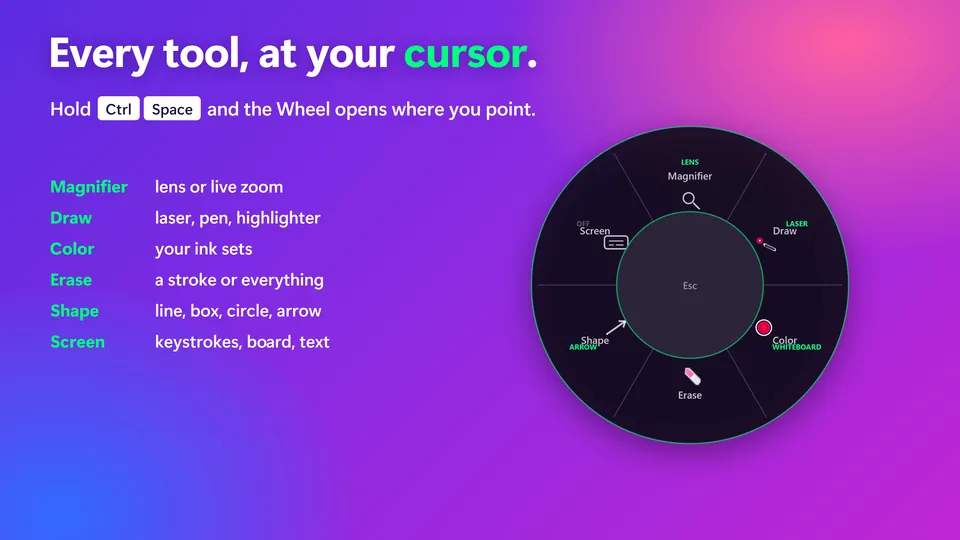
| The Wheel | Tutor tab, the bar at the top (hold to open) | Ctrl+Space, or Ctrl+Alt+Space with Chinese input |
| Toolbar ⇄ Wheel switch | Tutor tab › Toolbar settings | Ctrl+Win+A |
| Draw (Laser, Pen) | Tutor tab › the Ink card | Ctrl+Win+X |
| Switch colour set | Tutor tab › Ink card › Presets › Switch preset | Ctrl+Win+R |
| Colour slots 1 to 4 | Tutor tab › Ink card, one box under each colour | Alt+1 to Alt+4 |
| Hide ink | Tutor tab › Annotation display settings › Hide ink shortcut | None |
| Shape | Tutor tab › the Shape card | Ctrl+Win+W |
| Eraser | Tutor tab › the Eraser card | Ctrl+Win+Y |
| Clear all | Tutor tab › the Clear All card | Ctrl+Win+B |
| Keystrokes, Whiteboard, Text | Tutor tab › the on-screen actions card. The box follows the segment you select: Keystrokes, Whiteboard or Text | Ctrl+Win+T, Ctrl+Win+K, Ctrl+Win+I |
| Magnifier | Magnifier tab, the bar at the top | Ctrl+Win+G |
| Zoom and Spotlight opacity (with scroll) | Magnifier tab: the Zoom Factor row, or the Opacity row in Spotlight mode. Same setting | Ctrl+Alt (modifiers only) |
| Screenshot | System tab › Screenshot card | None |
What a chord needs#
The box checks each chord as you press it and refuses the ones that would misfire. Every box follows the rules below except the Zoom box, described after the table.
| If you press… | SHARA does… | Why |
|---|---|---|
| Ctrl, Alt or Win plus a key | Accepts it. | A strong modifier keeps the chord from firing while you type. |
| Shift plus a letter, or a plain letter | Refuses: “Requires Ctrl, Alt, or Win”. | It would trigger inside every text box. |
| F1 to F11, F13 to F24, Insert, Delete, Home, End, Page Up, Page Down, Print Screen, Pause or a media key on its own | Accepts it, no modifier needed. | These keys do not type text. |
| F12 | Refuses: “F12 is reserved by Windows for debuggers.” | Windows keeps F12 for debuggers. |
| Only modifiers, such as Ctrl+Alt, in a normal box | Refuses: “Modifier-only shortcuts are not supported; add a non-modifier key.” | A chord needs a real key. |
The Zoom and Spotlight opacity box is different. It takes modifiers only, because the scroll wheel supplies the rest. It refuses Win (“Win opens Start here: use Ctrl, Alt or Shift”), Ctrl+Shift (“Ctrl+Shift switches keyboard layout”) and Alt alone (“Add Ctrl: Alt alone opens app menus”). Ctrl+Alt is the default and Ctrl alone works.
Fix a conflict#
SHARA never lets two features fire on one chord. It marks the clash in the box.
- Spot the amber icon.A box with a warning shows a small amber triangle. Point at it: the tooltip names the problem.
- Read the tooltip.“Conflict: Eraser” means another SHARA shortcut already holds the chord. “Already in use by Windows or another app.” means Windows would not give it to SHARA. “Also set for Shape (off)” on the other box means this one kept the chord.
- Change one of the two.Record a different chord in the box that shows the conflict. The shortcut that lost the chord turns back on once it is free.
When two SHARA shortcuts share a chord, the one registered first keeps it and the other is switched off, not deleted. A chord another program owns, such as a screen recorder’s, is refused by Windows. If a tray message says SHARA “could not register hotkey” and that it may be in use by another application, open Settings and record a free chord for that shortcut.
Ctrl+Alt+Space and Chinese input#
Ctrl+Space is also the Windows key that turns a Chinese input method on and off. SHARA takes the keys while the Wheel is open, so on a PC with any Chinese input language installed, a new SHARA install starts the Wheel on Ctrl+Alt+Space instead. It does not use Ctrl+Shift+Space or Win+Ctrl+Space, because Windows reads those as a layout switch or “previous input”.
- Installs from before the toolbar keep the Wheel shortcut they already know.
- Reset to Default on the Wheel box gives back the right chord for this PC: Ctrl+Alt+Space with Chinese input, Ctrl+Space without.
- Any language, any chord. If another input method or app owns Ctrl+Space or Ctrl+Alt+Space for you, record a different one in the Wheel box on the Tutor tab.
Use a mouse button instead#
Five jobs can also run from a mouse button. The choices are Off, Middle (the scroll-wheel click), Back (Mouse 4) and Forward (Mouse 5). All five start on Off.
| Mouse button job | Where to turn it on | What it does |
|---|---|---|
| Open the Wheel | Tutor tab › Wheel display settings › Mouse button | Opens the Wheel from the button. |
| Switch toolbar and Wheel | Tutor tab › Toolbar settings | Switches which tool surface shows. |
| Step the halo size | Appearance tab › Halo display settings | Moves through the five sizes. |
| Open the Magnifier | Magnifier tab › Lens trigger settings › Mouse button | Starts the lens. |
| Hide or show ink | Tutor tab › Annotation display settings › Hide ink shortcut | Hides or shows the ink. |
A mouse button can serve one job. While you assign it, the button stops doing its usual work in other apps, and the same button is greyed out for the other four jobs. The hotkey for the job keeps working next to it.
Questions#
Can I change every SHARA shortcut?
Is changing hotkeys free?
My new hotkey does nothing. Why?
How do I go back to the defaults?
Why does the Wheel use Ctrl+Alt+Space on my PC?
Where is the list of every default shortcut?
If it doesn’t work
- The box stays on “Press keys…”. Press a regular key as well as the modifiers. A modifier alone is not a chord. Esc cancels.
- “Already in use by Windows or another app.” Another program owns the chord. Close it or pick a different chord.
- Ctrl+Space fights with your input method. Use Ctrl+Alt+Space for the Wheel (see the Chinese input section).
- Nothing opens at all. SHARA may be off. Ctrl+Win+Z switches it back on. How the Wheel and toolbar work.