
Draw on your screen with SHARA
SHARA draws on a transparent layer above every app, so the window underneath keeps running. Laser, Pen, Arrow, Text and the Eraser are free forever. This page shows how to start each one, change the pen width and text size, and undo, clear or hide your ink.
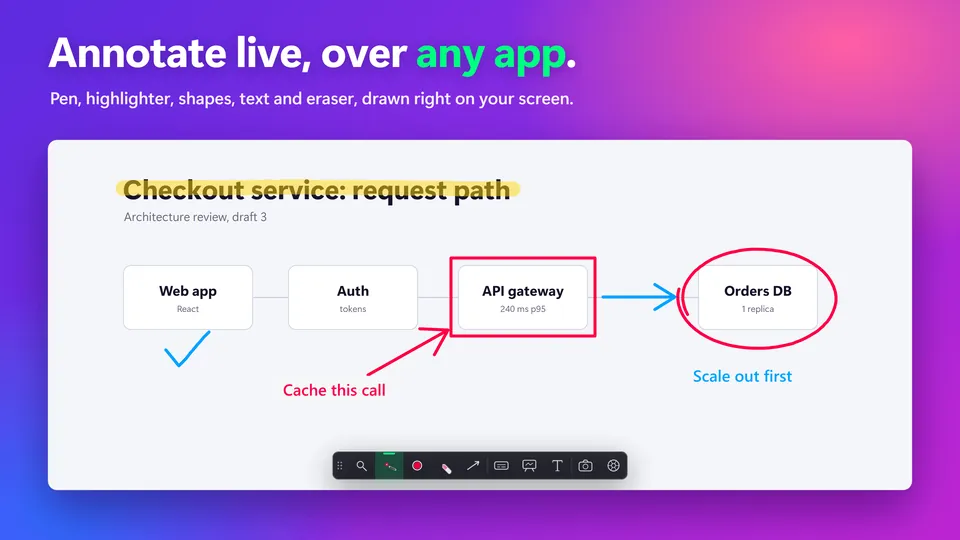
The draw tools at a glance#
Every tool is on the Wheel (Ctrl+Space) and on the docked toolbar. The keys let you start one without either. How the Wheel and toolbar work.
| Tool | What it does | Start it | Free or trial |
|---|---|---|---|
| Laser | A trail that fades by itself after 2.6 seconds. For pointing, not for marking. | Ctrl+Win+X while Laser is the Draw mode (the default) | Free forever |
| Pen | Ink that stays on screen until you erase, undo or clear it. Width 1 to 12 px, default 4. | Ctrl+Win+X with Pen chosen as the Draw mode | Free forever |
| Arrow | Drag out an arrow from a point to the thing you mean. | Ctrl+Win+W, or the Shape slice | Free forever |
| Text | Click, type, press Enter. Small, Medium, Large or a Text box. | Ctrl+Win+I | Free forever |
| Eraser | Wipe single marks away by dragging over them. | Ctrl+Win+Y | Free forever |
| Undo, Clear, Hide ink | Take back the last mark, remove every mark, or hide the ink without deleting it. | Ctrl+Z, Ctrl+Win+B, Erase slice | Free forever |
| Highlighter | A wide, see-through stroke for marking a line of text. | The third Draw mode | Free for 14 days |
| Line, Rectangle, Circle | The other three shapes in the Shape slice. | Ctrl+Win+W, then pick the shape | Free for 14 days |
Draw with Laser and Pen#
- Hold Ctrl+Win+X and move the pointer.Your stroke follows the pointer for as long as you hold the keys. Let go and SHARA stops drawing. This is the default Hold mode.
- Choose Laser or Pen first.Open the Wheel with Ctrl+Space, move to the “Draw” slice and pick “Laser” or “Pen”. On the docked toolbar, use the “Draw” button. Laser is the default.
- Set the pen width.Point at the Draw button on the toolbar and hold Shift while you scroll. The width reads in pixels, from 1 to 12, and starts at 4. On the Wheel, scroll while you point at the Draw slice.
- Press Ctrl+Z to take back the last mark.Or press the “Undo” button on the toolbar. Undo keeps up to the last 32 marks.
Free to install. Laser, Pen, Arrow, Text and the Eraser never expire.
Download free fromView onMicrosoft StoreFree forever: cursor halo, click animation, Pen, Laser, Arrow, Text, Eraser, Screenshot and the Ctrl+Space Wheel. Every Pro tool is free for your first 14 days, with no card and no account. After that, Pro is a one-time purchase ($19.99 in the US). See pricing and the 14-day trial →
Point with an Arrow#
- Press Ctrl+Win+W, or open the “Shape” slice on the Wheel.The Shape slice offers Line, Rectangle, Circle and Arrow. Arrow is the default shape and the only one that is free forever.
- Drag from where the arrow starts to where it points.A preview follows the pointer. Let go and the arrow becomes ink, like any other mark.
- Scroll to change the width.Hold Shift and scroll over the Shape button. Shapes share the Pen width.
Add text to the screen#
- Press Ctrl+Win+I, or choose “Text” in the Screen slice.The Text tool is now in your hand.
- Pick a size on the toolbar.“S”, “M” and “L” set the label to 20, 32 or 52 points. Scroll over the Text button to step the size anywhere from 12 to 160. “Box” puts the label on a rounded backing so it stays readable over any picture.
- Click where the label should start, then type.The label starts at the point you clicked.
- Press Enter, or click somewhere else, to place it.The label becomes ink, so Undo, the Eraser and screenshots treat it like any other mark.
- Right-click to put the Text tool away.Your placed labels stay.
Erase, undo, clear and hide#
| Action | What it does | How |
|---|---|---|
| Eraser | Removes the marks you drag over. | Ctrl+Win+Y, or Eraser in the Erase slice. Hold mode by default, like drawing. |
| Undo | Takes back the last mark, up to 32 marks. | Ctrl+Z while you are drawing, or the toolbar’s Undo button. |
| Clear | Removes every mark on the screen. Undo brings them back. | Ctrl+Win+B, or Erase all in the Erase slice. |
| Hide ink | Takes the ink out of sight without deleting it. Press again to show it. | Hide ink in the Erase slice. It has no default key; add one in Settings. |
Choose Hold or Click drawing#
SHARA starts in Hold mode: you draw while you hold the draw keys. If holding keys is awkward, switch to Click mode.
- Open SHARA Settings from the tray icon and select the Tutor tab.The Annotation Tools card sits on this tab.
- Select the gear on the Annotation Tools card.It opens the Annotation display settings.
- Under Draw mode, choose Hold or Click.Hold draws only while you hold the keys. Click turns drawing on with one press of the hotkey, then you draw by holding the left mouse button.
- Press the hotkey again, or right-click, to put the tool away in Click mode.Your ink stays.
Questions#
Are the SHARA drawing tools free?
Does the pen respond to pressure?
Will people in my meeting see what I draw?
How do I make the laser stay longer?
Can I change the hotkeys?
If it doesn’t work
- Ctrl+Win+X does nothing. Another app may hold the keys, or SHARA is off. Ctrl+Win+Z turns all of SHARA off and on. Rebind the draw hotkey.
- The Highlighter or a shape shows a padlock. Your 14-day trial ended. Laser, Pen and Arrow stay free. See what stays free.
- Viewers can’t see your ink. Share the screen, not a window.
More in Features: Keystroke pill · Whiteboard and colors · Screenshot.