
Take a screenshot with SHARA
SHARA takes a screenshot of the monitor you are on, with your ink in the picture and its own toolbar left out. It copies the image, saves a PNG to Pictures\SHARA, or does both. This page shows how to take one, change where it goes and add a hotkey.
Take a screenshot#
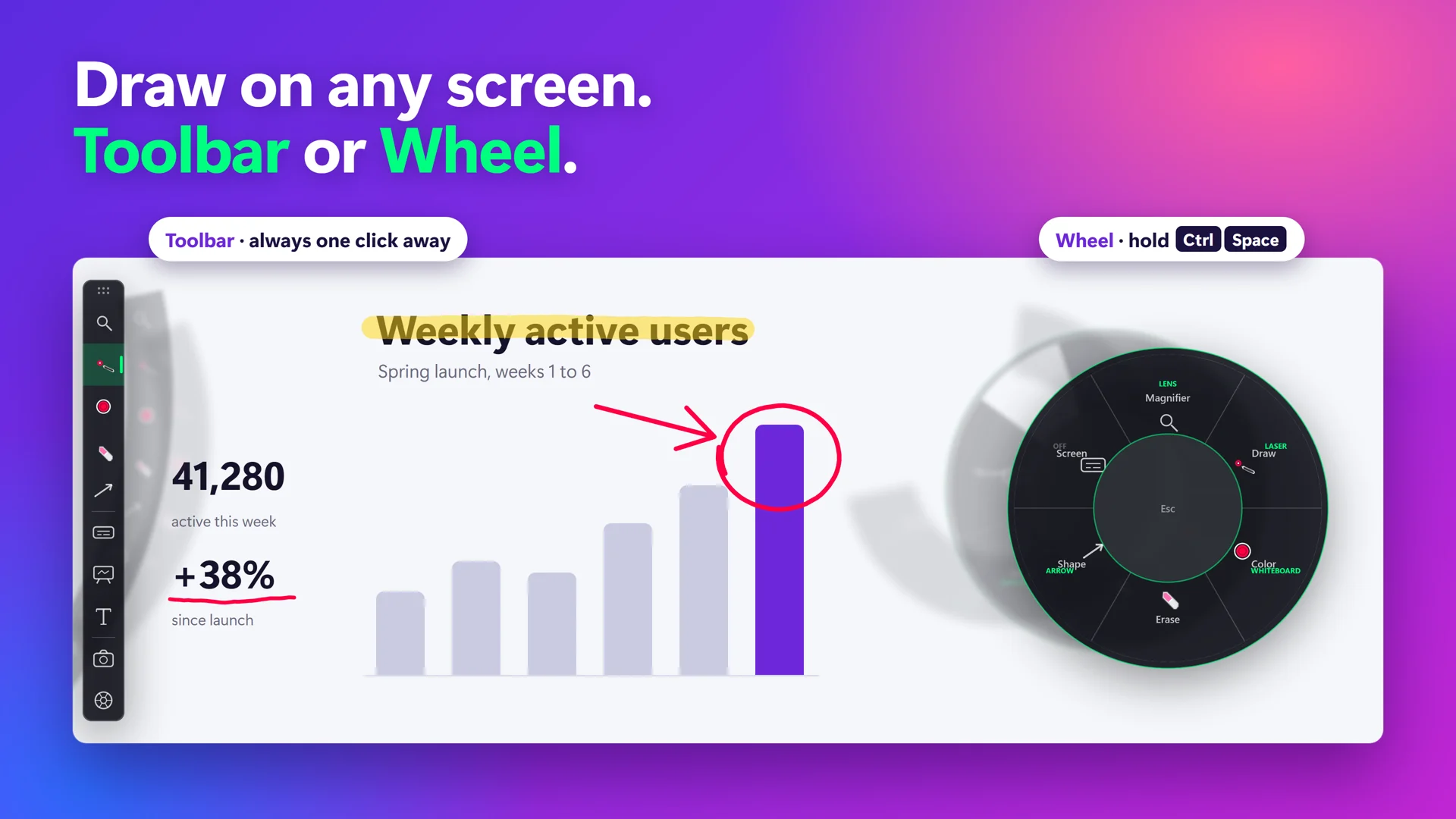
Screenshot is a toolbar cell, a tray menu item and an optional hotkey. It is not on the Wheel. How the Wheel and toolbar work.
| Way to start | How | Default key |
|---|---|---|
| Toolbar | Click the camera button on the docked toolbar. It is the second cell from the bottom. | None needed |
| Tray icon | Right-click the SHARA icon in the tray and choose Screenshot. SHARA waits a moment for the menu to fade out first. | None needed |
| Hotkey | Press the chord you record in Settings (see Add a hotkey). | None until you record one |
- Put on screen what you want in the picture.Draw with SHARA, open a page, or leave the Whiteboard up. Anything SHARA drew is part of the shot.
- Click the camera button on the toolbar.You can also use the tray menu or a hotkey (table above). The toolbar and halo disappear for a split second while SHARA copies the screen.
- Read the hint that appears.It says “Screenshot copied”, “Screenshot saved to Pictures\SHARA” or “Screenshot copied and saved to Pictures\SHARA”, and fades after about two seconds.
- Paste with Ctrl+V, or open the file.Pasting works in chat, mail, Word, Paint and most editors. The file is in Pictures\SHARA unless you picked another folder.
Free to install. Screenshot, Laser, Pen, Arrow and the Eraser never expire.
Download free fromView onMicrosoft StoreFree forever: cursor halo, click animation, Pen, Laser, Arrow, Text, Eraser, Screenshot and the Ctrl+Space Wheel. Every Pro tool is free for your first 14 days, with no card and no account. After that, Pro is a one-time purchase ($19.99 in the US). See pricing and the 14-day trial →
Choose where the picture goes#
SHARA starts on Both: the picture is copied and saved.
| Setting | What happens | Good for |
|---|---|---|
| Copy | The picture goes to the clipboard only. No file is made. | A quick paste into chat or a doc. |
| Both (default) | The picture is copied and also saved as a PNG. | Pasting now and keeping a copy. |
| Save | A PNG is saved and the clipboard is left alone. | Keeping what you copied earlier on the clipboard. |
- Open SHARA Settings from the tray icon and select the System tab.The Screenshot card sits on this tab, with its output button and its hotkey box.
- Select the output button on the Screenshot card.It opens the “Screenshot output” panel.
- Choose Copy, Both or Save.The choice applies to the next screenshot.
- To change the folder, select “Change…” under “Save to”.“Open” shows the folder in Explorer and “Use default” goes back to Pictures\SHARA. The folder row looks dimmed while the output is Copy, because nothing is saved then.
What is in the picture#
SHARA copies the whole monitor under your pointer as it is composed right now. It hides its own controls first, so the picture shows your content and your ink, not the tools.
| In the picture | Left out |
|---|---|
| Your ink: Laser, Pen, Arrow, shapes and text labels | The docked toolbar |
| A text label you were still typing, placed without its caret | The cursor halo and the click ripple |
| The Whiteboard, when it is open | The hint pill at your pointer |
| Every app and window on that monitor | Other monitors: only one is captured |
With the Whiteboard open, the screenshot is of the monitor the board is on, so it works as an export of the board.
Screenshots on an HDR monitor#
When Windows runs a monitor in HDR mode, a plain copy of the screen comes out washed out. SHARA reads such a monitor the way Windows composes it and scales it back to standard brightness, so ordinary content keeps its own colours. Highlights brighter than standard white turn white in the PNG. If that step fails for any reason, SHARA takes the standard copy instead. A monitor in SDR mode needs none of this.
Add a screenshot hotkey#
There is no default key. Record one so a screenshot never needs the mouse.
- Open SHARA Settings and select the System tab.Look at the Screenshot card.
- Select the hotkey box on the right of the Screenshot card.It says None until you record a chord.
- Press the keys you want.A chord with a modifier such as Ctrl, Alt, Shift or Win works. A lone modifier does not. If another SHARA hotkey already uses the chord, the box shows a warning.
- Close Settings and try it.The tray menu now shows the chord next to “Screenshot”.
Questions#
Is the SHARA screenshot free?
Where does SHARA save screenshots?
Can I screenshot just part of the screen?
Does the screenshot include my drawing?
Does SHARA record video?
If it doesn’t work
- “Screenshot could not be taken”. SHARA could not read the screen or write the picture. Try again, then try the output Copy to rule out the folder.
- Nothing happens. A screenshot is skipped while the Wheel is open or while the previous one is still being taken. Close the Wheel and try again. The hotkey also needs SHARA switched on: Ctrl+Win+Z turns it back on.
- The hotkey does nothing. The box may still say None, or another app holds the chord. Rebind the hotkey.
- The toolbar shows in a recording. That is a screen recorder, not the screenshot. Hide SHARA from capture.
More in Features: Cursor halo · Draw tools · Magnifier · Keystroke pill.