
Use SHARA in a Microsoft Teams meeting
To show SHARA in Teams, select Share in the meeting controls and choose your entire screen, not a window. SHARA draws on its own layer above your apps, so a screen share carries your cursor halo and your ink to everyone. The halo and the basic draw tools are free.
Quick path
- In Teams select Share and choose your screen, not a window.
- Hold Ctrl+Space, move into Draw, pick Pen or Laser, and draw. Attendees see the halo and the ink.
- Before the call: switch Tips off and check that Teams’ unmute shortcut does not use the same keys.
Share your entire screen#
Do this once per meeting, before you draw. The one choice that matters is Screen, not Window.
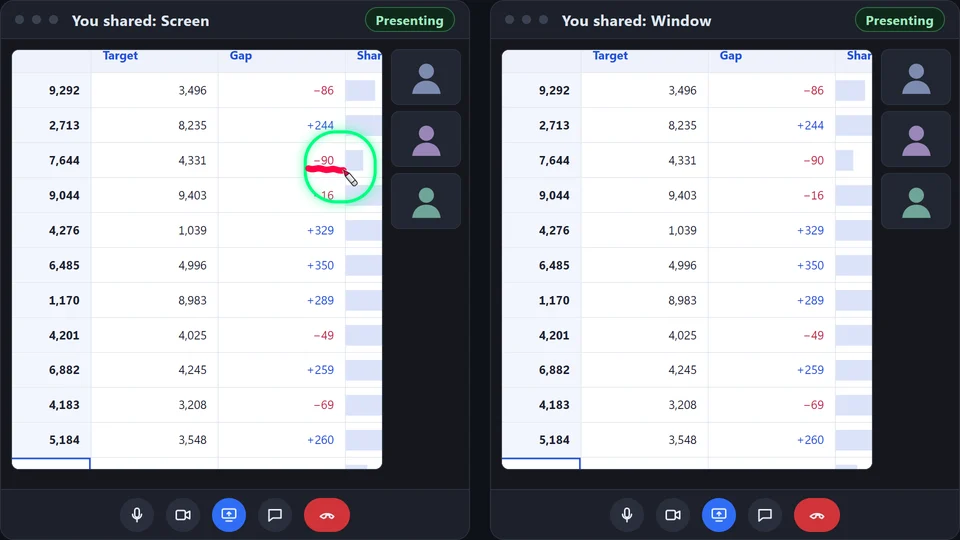
- Join the meeting and start SHARA.The halo follows your pointer as soon as SHARA is running. Start it before you share so it is already there.
- Select Share in the meeting controls.Teams’ own shortcut Ctrl+Shift+E toggles the same share tray (Microsoft’s shortcut list).
- Choose your screen, not a window.Teams is redesigning this panel (live previews of your screens and windows, a two-step confirmation), so the tab names differ between versions. The rule does not: pick a screen preview. A Window share sends the one window you pick, and SHARA’s layer is not part of it. With more than one monitor, pick the one you will draw on.
- Turn on Include sound first if you play audio.Microsoft’s support page describes it as a toggle you set before you start sharing. If your Teams version has moved it, set it before you confirm the share.
- Check the presenter toolbar.Move your pointer to the top of the shared screen. Only you see the toolbar. Stop sharing is on it.
Full Teams walkthrough with PowerPoint Live and chat sharing: how to share your screen on Teams.
Draw in the meeting#
The Wheel is your menu. Hold the keys, move, let go, and the tool is in your hand.
- Hold Ctrl+Space.The Wheel opens at your pointer (Ctrl+Alt+Space if a Chinese input language is installed).
- Move into the Draw slice, then out to Laser or Pen, and let go.The hub reads Draw while you are on the slice. Laser fades 2.6 seconds after you draw it. Pen stays until you clear it.
- Rest on the thing you mean, then drag a short line under it.Teams normally sends a shared screen at a low frame rate to keep static content sharp (Microsoft’s own explanation), so a short, quick mark reads better than a big loop, and the halo keeps your pointer findable while you rest on the figure. What you draw is on the screen Teams is sending.
- Take it back: Ctrl+Z undoes the last mark, Ctrl+Win+B clears them all.Press Esc or right-click to put the tool down. Your ink stays until you clear it.
More on the Wheel and the docked toolbar: Wheel and toolbar. Every draw tool is on Draw tools.
Before you go live#
Six checks that stop SHARA’s own prompts, Teams’ shortcuts or an idle halo getting in the way of a meeting.
- Switch Tips off for the call.Settings, System tab, General card, the Tips switch (“Hints and reminders SHARA shows by itself”). SHARA does not detect a Teams share, so a first-use hint can appear on a screen the meeting is watching. The hint shows once per tool, so using each tool one time before the call also clears it.
- Check Ctrl+Space against Teams’ own shortcut.Teams uses Ctrl+Space to temporarily unmute when Keyboard shortcut to unmute (Settings, Privacy) is on. SHARA does not stop other apps seeing the keys, so with the Teams window in front, holding Ctrl+Space can do both. While you share, the shared app is in front. If you open the Wheel from the Teams window too, move the Wheel to another chord: Change hotkeys.
- Decide whether attendees should see the Wheel.By default they do. To keep the Wheel and the docked toolbar out of the share while your ink stays in: hide from capture.
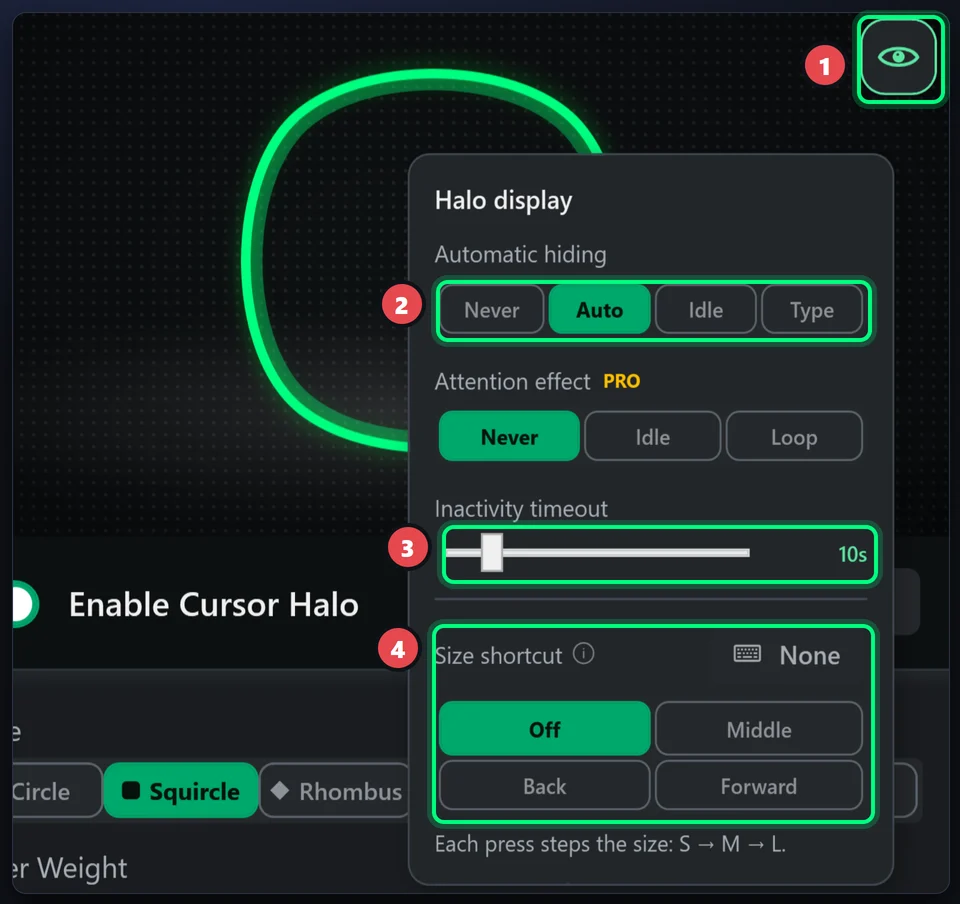
- Keep the halo on when you stop moving.The halo hides itself after 10 seconds without pointer movement (Automatic hiding: Auto) and comes back as soon as you move. To keep the marker on screen while you talk, set Never (Appearance tab, the eye button on the preview). It matters more in Teams than it looks: Microsoft says Teams shares at a low frame rate by default, so a plain mouse arrow can be hard to follow, and the halo is a large, bright ring that survives it.
- Dock the toolbar away from the top.Teams’ presenter toolbar appears at the top of the shared screen. SHARA’s toolbar docks to the nearest edge where you drop it, and starts on the left edge.
- Test with one person.Share, draw one stroke and ask them what they see. Or use the screen share test.
SHARA or Teams Annotate#
Teams has its own drawing tool. They do different jobs, and you can use both.
| Question | Teams Annotate | SHARA |
|---|---|---|
| Who can draw | The presenter gives everyone access or limits it to themselves (Only I can annotate, in the Whiteboard toolset’s settings). | Only you. It is your own screen. |
| What it does to your screen | Annotate locks the screen so people can draw; Start interacting with the background gives it back. | You decide per stroke. Esc or a right-click puts the tool down and the ink stays. |
| Where you start it | The Annotate button on the presenter toolbar, at the top of the shared screen. | Ctrl+Space from any app, or the docked toolbar. |
| What it adds | Annotations from several people. A snapshot saves to a Whiteboard file under Annotations. | The halo that follows your pointer, a Laser that fades, and screenshots with your ink. |
| Needs | Built into Teams. | SHARA installed on your PC, and an entire-screen share. The halo, Laser, Pen, Arrow, Text and Eraser are free. |
Teams facts from Microsoft Support, read November 10, 2026: Present content in Microsoft Teams meetings, and Use annotation while sharing your screen in Microsoft Teams.
Several monitors#
Pick the monitor you will draw on in Teams’ Share tray. SHARA’s drawing layer covers all your monitors, so you can draw on whichever one you shared. Microsoft’s page does not say which monitor Teams shares by default, so check the picture in the tray. Mixed-DPI and ultrawide set-ups are on multiple monitors and 4K.
What Teams cannot show#
- PowerPoint Live. Teams offers it as a separate share that sends the slide file rather than your screen. Our reading is that SHARA’s ink then does not reach attendees; we have not tested it in a live meeting. Share your screen with the slide show open instead, and see draw on PowerPoint while presenting.
- A single window. A window share carries that window only: no halo, no ink.
- The Wheel and the toolbar. Visible to attendees unless you hide them: hide from capture.
If it doesn’t work#
If attendees don’t see it
- They see your slides but no ink or halo. You probably shared a Window. Stop sharing, select Share again and choose your screen. Why a window share misses it.
- You shared the other monitor. Draw on the monitor you shared, or share the one you draw on.
- Nothing opens when you hold Ctrl+Space. SHARA may be off (Ctrl+Win+Z turns it on and off), or the chord is taken: Change hotkeys.
- Attendees see your Wheel and toolbar. That is the default. Hide them from capture.
- You are sharing a PowerPoint Live deck. See the next section.
- The share is blurry. Teams sets the share’s size and frame rate: fix a blurry Teams screen share.
- Still stuck. Email info@sharacursor.com with your Windows version (press Win+R, type
winver), what you picked in the Share tray, and what attendees see.
Little details worth knowing#
- SHARA has no Teams add-inIt draws on your screen and Teams sends that screen. Attendees install nothing, and no meeting policy is involved.
- Teams is not detectedSHARA recognises a PowerPoint slide show or a cloned display, not a Zoom, Teams or OBS share. So its own hints and balloons are not held back during a Teams share: switch Tips off or use each tool once beforehand.
- The Wheel hides when you let goThe Wheel closes 100 ms after you release the chord, and your pick stays in hand until Esc or a right-click.
- One drawing layer for all monitorsSHARA’s layer spans the whole virtual screen, so you can draw on whichever monitor you shared.
- Laser is 2.6 seconds, fixedThe Laser trail fades 2.6 seconds after you draw it. There is no setting for it.
- The halo is on at first launchAnd it flashes white on a click unless you set custom click colours.
- Teams’ zoom keys are separateMicrosoft lists Alt+Shift+Plus, Alt+Shift+Minus and Alt+Shift+0 to zoom shared content. They are Teams’ own, and SHARA’s Magnifier is the other way to enlarge your own screen: Magnifier.
Questions#
Do I need the meeting organizer’s permission to draw with SHARA?
How is this different from Teams’ own Annotate button?
Will attendees see the Wheel and the toolbar?
Does Ctrl+Space clash with Teams?
Is SHARA free to use in Teams?
Does it work in Teams on the web?
I shared my screen and attendees still don’t see my drawing. What now?
Related
Other call apps: Zoom, Google Meet, Discord and OBS. The SHARA FAQ has the short answers.
More in Works with: SHARA with OBS · SHARA with PowerPoint · SHARA with Discord · SHARA with Google Meet.