
SHARA with Discord
To use SHARA on a Discord screen share, open the Screens tab in Discord’s share picker, choose your screen and select Go Live. SHARA draws on its own layer above your apps, so everyone watching sees your halo, Pen, Arrow and Laser. Discord has no drawing tool of its own, and all four of those tools are free.
Quick path
- Go live from the Screens tab, hold Ctrl+Space, pick the Pen or Laser and draw: the halo and ink reach everyone. The halo, Pen, Arrow and Laser are free.
- Press Ctrl+Win+T to show your keys and clicks in a pill while you demonstrate:
it is included free for 14 days. - Set Recording to Hidden to keep the Wheel and toolbar off the stream, then test with a friend before the real call.
Share your whole screen in Discord#
SHARA is a Windows overlay, so there is nothing to add inside Discord. Share the screen, not an app, and draw. Button names follow public Discord guides read November 11, 2026, because Discord’s own help page did not load for us; they change a little between versions.
- Make sure SHARA is on.The halo follows your pointer. Ctrl+Win+Z turns all of SHARA off and on, and Ctrl+Win+H turns the halo on and off.
- Join a voice channel or start a call.The share controls sit in the voice panel at the lower left of Discord’s window.
- Select the screen button.Public guides call it Share Your Screen (streamer.guide, read November 11, 2026); it opens a picker.
- Open the Screens tab and choose the screen you will draw on.Do not pick a window from the Applications tab: a window share leaves SHARA out. With two monitors, choose the one that holds your game, replay or slides.
- Choose the quality if Discord asks, then select Go Live.Guides report that free accounts stream at up to 720p and 30 frames per second, and that Discord’s paid plans raise that. Your picker shows what your own account offers.
- Hold Ctrl+Space, move into the Draw slice, then out to Pen, and let go.The hub reads Draw while you are on the slice. Drag across the screen you shared and ask a friend to confirm the line shows.
To stop, end the stream from the voice panel. SHARA keeps running.
Draw on the share: loop it, point at it#
Discord has no drawing tool on a share. In a VOD review, a coaching call or a study group, “look at the top left” becomes a loop and an arrow the other person cannot miss. The clip shows both, and what your friend gets when you share a window instead.
- Point first.The halo marks your pointer. A Go Live stream is compressed, so a small pointer is easy to lose; the halo is not.
- Hold Ctrl+Space and let go on the Pen.Move into the Draw slice, then out to Pen.
The Pen stays in your hand until you put it away. - Drag a loop around what you are talking about.With a tool in hand a left click draws, so it does not click through to the app underneath.
- For an arrow, hold Ctrl+Win+W where it should start, move to the target and let go.Arrow is the default shape, and it works while the Pen or Highlighter is the tool in hand. When you let go, the Pen is back in your hand.
- Use the Laser for a quick point.Pick Laser in the Draw slice. Its trail fades by itself after 2.6 seconds, so nothing is left behind.
- Put the tool away and clear before you move on.Esc or a right-click puts the tool away. Ctrl+Win+B clears all ink, and Ctrl+Z undoes the last stroke right after you draw it.
Screens tab or Applications tab#
Discord’s picker offers two kinds of source. SHARA does not live inside any app: it puts a transparent layer on top of the screen. Only a whole-screen share carries that layer.
| Applications tab (one window) | Screens tab (whole screen) | |
|---|---|---|
| SHARA halo, ink and key pill | Left out. SHARA draws on its own layer above your apps, not inside the window. | Included. The overlay is part of the screen. |
| What viewers see | Only the chosen app. | Everything on that monitor, including other windows you open. |
| Game or app sound | Guides report that Discord captures sound automatically when you share one app (streamer.guide). | Guides report that sound is not shared from this tab. |
| A game in exclusive full screen | A Discord community answer says an exclusive full-screen app cannot be shared, and a windowed or borderless one can (Discord community). | The same limit applies, so run the game borderless or windowed. |
| Best for | Showing one app with its sound. | Pointing, looping and teaching with SHARA. |
Want the forum background and more fixes? Draw on a Discord screen share covers it, and the screen share test card shows what viewers will receive.
Show your keys and clicks while you demonstrate#
Viewers see your screen, not your hands. When you teach a move, a shortcut or a setting, the on-screen pill puts the keys and mouse clicks next to your pointer, so “hold Ctrl and click” is something they can read.
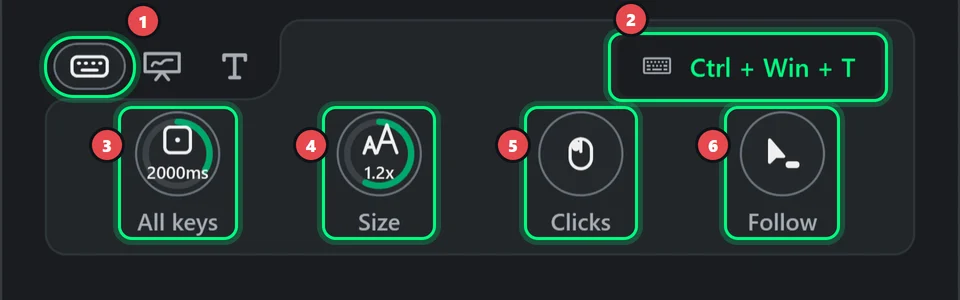
- Open SHARA Settings, then the Tutor tab.Use the tray icon. The On-screen actions card is at the bottom of the tab.
- Select the Keystrokes tile until it reads All keys.Each click steps Off, All keys, Shortcuts, Off. Shortcuts shows chords only and hides plain typing.
- Select the Mouse tile until it reads Clicks.Each click steps Off, Clicks, Clicks and scroll, Off. Clicks never show until this tile is on.
- Leave Placement on Follow, or fix the pill to the screen.Follow puts it under your pointer. Bottom, Bottom-left and Top fix it to the monitor under your pointer.
- Press Ctrl+Win+T to show or hide the pill.Try it: hold Ctrl and click. Your pointer shows “Ctrl + Left-Click”.
Keep the Wheel and toolbar out of the stream#
Viewers can see the Wheel and the docked toolbar unless you hide them. Your ink stays visible. This is off by default.
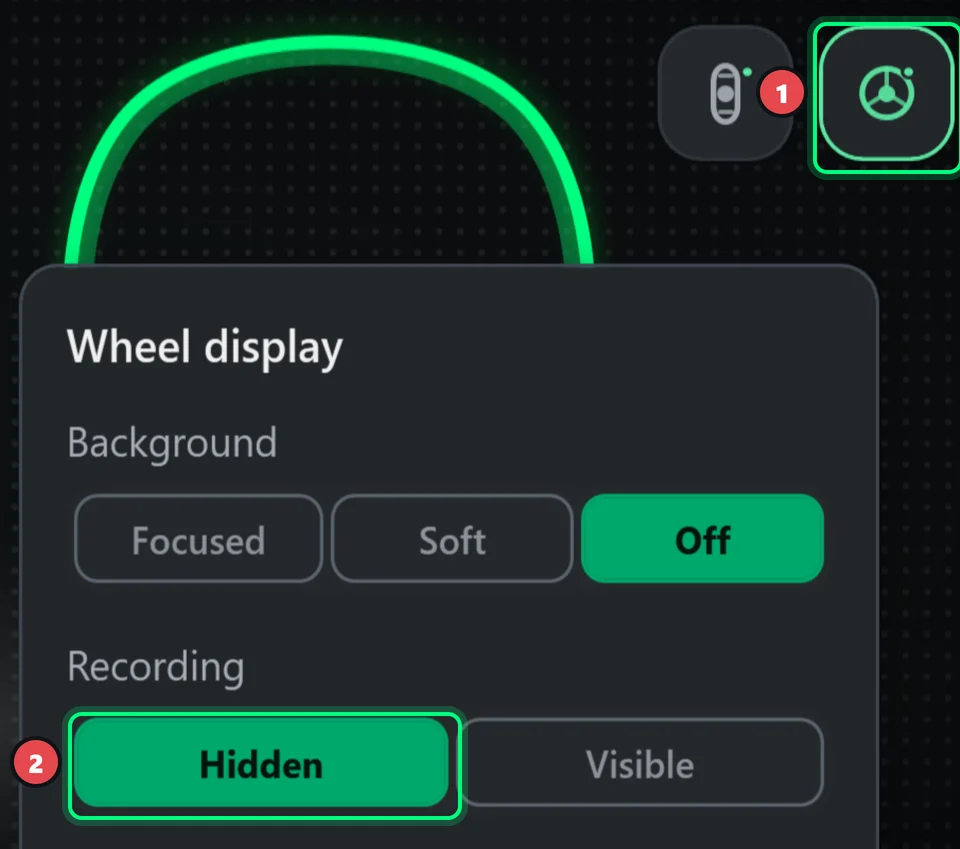
- Open SHARA Settings.Use the tray icon.
- Select the Tutor tab.It is in the Settings sidebar.
- Select the Wheel display button.The round steering-wheel icon at the top right of the tab (tooltip “Wheel display settings”).
- Set Recording to Hidden.You still see the Wheel and toolbar. The stream does not.
Hidden asks Windows to exclude these windows from capture. Availability depends on Windows and on what captures the screen, and if Windows refuses, SHARA switches the setting back to Visible so it never claims protection it does not have. We have not seen it tested in a live Discord call, so check it in the test below. Settings, the tray menu and the upgrade sheets are not covered, so close them before you go live.
Keep the halo on while you talk#
SHARA hides the halo after 10 idle seconds. It pauses that for a PowerPoint slide show and duplicated displays, but not for a Discord share, so a review where you stop to explain would lose the halo.
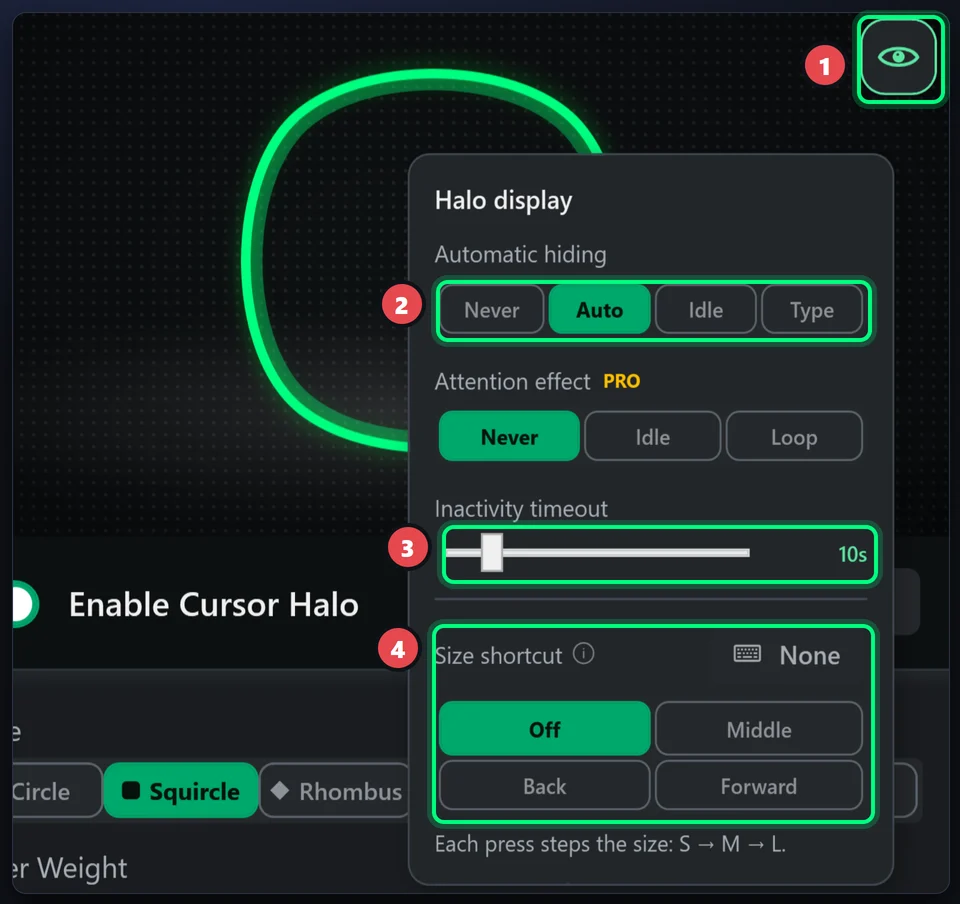
- Open SHARA Settings, then the Appearance tab.Use the tray icon.
- Select the eye button on the halo preview.Its tooltip reads “Halo display settings”.
- Set Automatic hiding to Never.The halo then stays where your pointer is until you turn it off with the halo hotkey.
Check it with a friend before the real call#
We have not recorded a live Discord call with SHARA, so run this once. It takes about a minute.
- Start a call with a friend and go live.Use the Screens tab, as above. Ask your friend to join the stream.
- Draw and press keys.Draw a Pen loop, hold Ctrl+Win+W for an arrow, and press Ctrl while you click.
- Ask what they see.The halo should follow your pointer, the loop and arrow should be there, and the Wheel and toolbar should not (if you set Recording to Hidden).
| What you see | Likely cause | Fix |
|---|---|---|
| Friends see your screen or app but none of your drawing | You shared one Applications window. | Stop the stream, then go live again from the Screens tab. Viewers can’t see ink covers every call app. |
| Nothing of SHARA shows, not even on your screen | SHARA is off, or the halo is hidden. | Press Ctrl+Win+Z to turn SHARA on, and Ctrl+Win+H for the halo. |
| SHARA shows on your screen but not on the stream | You shared the other monitor. | Go live again and pick the monitor you draw on in the Screens tab. |
| The halo vanished while you talked | Discord is not a slide show or a duplicated display, so the halo hides after 10 idle seconds. | Set Automatic hiding to Never (see Keep the halo on). |
| The Wheel or toolbar is on the stream | Recording is set to Visible, or Windows refused the request. | Set it to Hidden (steps above) and test again. Hide from capture has the details. |
| The key pill does not show | Keystrokes or Mouse is off, the trial has ended, or the focus is a text box SHARA cannot identify. | Check the two tiles on the Tutor tab. An unidentified text box counts as private, so the pill pauses there; see the keystroke pill page. |
| Your game window is black on the stream | The game runs in exclusive full screen. | Switch the game to borderless or windowed mode, then go live again (Discord community answer). |
| No game sound on the stream | Guides report that a Screens share does not carry sound. | Test both tabs with a friend, and use the Applications tab if the sound matters more than the drawing. |
| Your pointer is missing from the stream | Some users report this on Discord shares. | The halo is SHARA’s own ring at your pointer, so it still marks the spot while the pointer is missing. |
Other ways Discord groups use it: game coaching and VOD review for players, online tutoring and study calls for learners.
Little details worth knowing#
- Discord has no drawing tool on a shareA feature request in Discord’s community forum asks for annotation in Go Live. SHARA is a separate Windows overlay, so it works without any Discord setting.
- A click drawsWith a tool in hand, the left click draws and is not passed on. A right-click or Esc puts the tool away first, then clicks go to the app again.
- The marks stay on the screen, not on the videoPen ink stays until you clear it, whatever the replay does underneath. Pause the replay on the moment, draw, and clear before you press play.
- Arrow needs the Pen in handCtrl+Win+W works while the Pen or Highlighter is the tool in hand. It does nothing while the Laser is in hand.
- One drawing layer for every monitorSHARA draws across the whole virtual screen, and the pointer decides where. Draw on the monitor you shared.
- The pill never shows SHARA’s own keysPressing Ctrl+Win+T or any other SHARA hotkey does not appear in the pill. Shift on its own shows nothing either.
- Typing grows a wordTyped letters build up as one word in the pill, which goes 2 seconds after the last key. A single key such as Space or Enter shows by name.
- The pill reads the monitorA fixed placement follows the monitor under your pointer, so it moves with you across screens.
Questions#
Can you draw on a Discord screen share?
Why can friends see my screen but not my drawing?
Do I need a server permission to draw with SHARA?
Does sound still work when I share my whole screen?
Can I use it to review a game replay or coach a player?
Can viewers see my keystrokes and clicks?
Does it work on a second monitor?
Is SHARA free to use on Discord?
None of this worked. What now?
If it doesn’t work
Start with the symptom table above, then viewers can’t see your drawing. Other call apps: Teams, Zoom and Google Meet. The SHARA FAQ has the short answers.
More in Works with: SHARA with Teams · SHARA with Zoom · SHARA with OBS.